
Best Windows 11 Personalization Apps for Multi-Monitor Setups
A single-monitor Windows 11 PC is straightforward. Pick a wallpaper, tweak the taskbar, done.
A single-monitor Windows 11 PC is straightforward. Pick a wallpaper, tweak the taskbar, done. Strap a second or third monitor to your desk and half the built-in personalization features either break or never existed in the first place. Wallpapers stretch or tile. Screensavers hit every monitor when you only want one. Hot corners are not a thing at all.
You end up installing tools to fill the gaps. The trick is picking the right ones without stacking four apps that overlap.
This article runs through the tools that actually make a difference on multi-monitor setups and skips the ones that were clearly designed for a single screen.
What Windows 11 already does
Before adding anything, here is what Windows 11 handles on its own:
- Per-monitor wallpapers: right-click a monitor's desktop, pick "Set for monitor X." Different static images per display work fine. What does not work is rotating wallpapers independently per monitor -- the native slideshow picks one image and mirrors it everywhere.
- Multi-monitor taskbar: since 22H2, you can show the taskbar on all displays and choose between showing all windows or only the windows on that screen. It works, but customization is shallow.
- Snap layouts: hover over a window's maximize button and Windows 11 suggests layout grids. Useful for window arrangement, unrelated to visual personalization.
- Screensavers: Windows 11 still ships the same six screensavers that shipped with XP. They either run across all monitors or on the primary only, depending on the screensaver. There is no per-monitor picker.
The gaps are uniform and predictable: no independent wallpaper rotation per monitor, no hot corners, no per-monitor screensaver control, no custom tray menus, no taskbar widgets per display.
The tools
Wallpaper Engine
Wallpaper Engine is the standard for animated desktop backgrounds on Windows. It handles multi-monitor setups properly: assign different wallpapers per monitor, span across displays, or mirror the same scene. The Steam Workshop has tens of thousands of community-made wallpapers, from subtle particle effects to reactive music visualizers.
It costs about $4 on Steam. The trade-off is resource use: animated wallpapers pause when apps are fullscreen by default, but a low-end GPU pushing three monitors will feel it.
Multi-monitor score: strong for wallpapers. No screensavers, no hot corners, no tray tools.
Lively Wallpaper
Lively Wallpaper is the open-source alternative to Wallpaper Engine. Video wallpapers, web pages, GIFs -- all assignable per monitor. It is lighter on resources than Wallpaper Engine and does not need Steam.
The content library is smaller. You will mostly bring your own videos and web pages. For people who want a clean video loop on a secondary display without installing Steam or paying anything, it is the right pick.
Multi-monitor score: good for wallpapers. Same scope limits as Wallpaper Engine.
DisplayFusion
DisplayFusion is the tool most multi-monitor users hear about first. Taskbars per monitor with deep customization, monitor profiles that save and restore layouts, wallpaper management with per-monitor rotation from local and online sources, window management with hotkeys, trigger-based automation.
The Pro version is $34. It has been around since 2007 and compatibility is solid. The downside is weight: DisplayFusion runs multiple background processes. It also does not include screensavers, hot corners, or tray menus -- those are outside its scope.
If you need industrial-grade multi-monitor taskbars and monitor profiles, DisplayFusion does that. For visual personalization beyond wallpapers, you will need additional tools.
Multi-monitor score: excellent for taskbars, profiles, and wallpaper triggers. Not a personalization hub.
PowerToys
PowerToys is free, backed by Microsoft, and updated regularly. For multi-monitor users, the standout is FancyZones: custom window snap grids per monitor that go far past Windows 11's built-in layouts.
Version 0.100 (June 2026) added multi-monitor Dock and Wrap modes plus a Shortcut Guide overlay. Power Display (0.99, April 2026) handles monitor hardware -- brightness, color profiles, layout -- not visual customization.
What PowerToys does not touch: wallpapers, screensavers, hot corners, tray menus.
Multi-monitor score: excellent for window management. Zero for visual personalization.
WidBar
WidBar is a new free beta from developer Andrea Del Bello. It puts live widgets -- system metrics, media controls, custom modules -- into the empty spaces on each monitor's taskbar. You drag widgets into a preview of your taskbar, and different monitors can have different widgets.
Windows Central covered it in late June 2026. It fills a real gap: Windows 11's widgets panel is a single overlay, not a per-monitor tool. As a beta, expect some rough edges, but the concept is right.
WidBar does not overlap with any other tool in this list. You can run it alongside PowerToys, LumoTray, or Wallpaper Engine and it just adds taskbar widgets without conflict.
Multi-monitor score: the only tool here that puts different widgets on different taskbars. Purely complementary.
WinXCorners
WinXCorners is a tiny free utility that adds macOS-style hot corners to Windows. Assign an action to each corner -- show desktop, open Start, run a program -- and it fires when your cursor hits the corner.
It uses a few megabytes of RAM, sticks to hot corners, and has not been updated since 2022. It works on the primary monitor only. If you want hot corners across all three displays, or integration with screensaver triggers and wallpaper controls, WinXCorners will not get you there.
Multi-monitor score: a single-display fix. Fine for a laptop, limiting for a three-monitor battlestation.
LumoTray
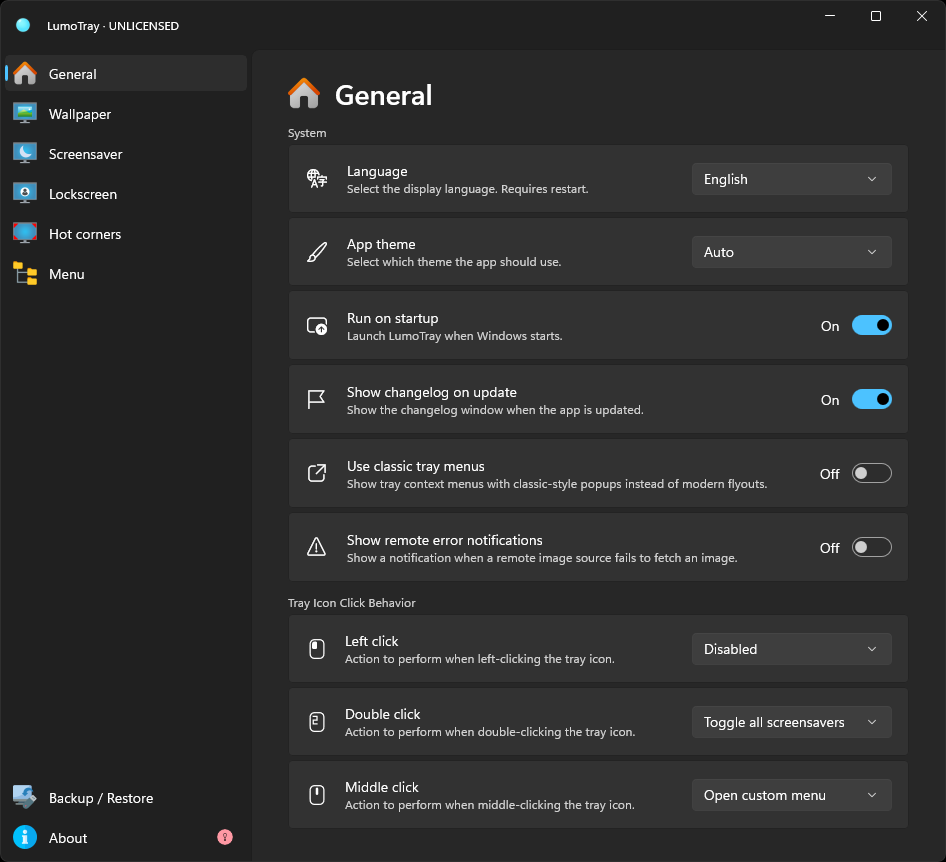
LumoTray bundles wallpaper management, screensaver modes, hot corners, and custom tray menus into a single light app. Per-monitor wallpapers from local folders, Bing, Unsplash, NASA APOD, Wallhaven, and more -- with independent rotation per display that survives sleep and wake cycles.
The screensaver side includes a dual-clock mode, an art gallery screensaver pulling from museum collections, NASA EPIC Earth imagery, and a Matrix-style video overlay. Each screensaver can target a specific monitor instead of covering all of them.
Hot corners work across every monitor and can trigger screensavers, show the desktop, or launch apps and scripts. The tray menu builder lets you pin apps, files, folders, and scripts to a custom popup that opens from the system tray -- useful if you like launchers but do not want another taskbar app.
Get LumoTray from the Microsoft StoreMulti-monitor score: the only app here that hits wallpaper, screensavers, hot corners, and tray menus together. Built for multi-monitor from the start.
Comparison table
| Tool | Wallpapers | Screensavers | Hot Corners | Tray Menus | Taskbar | Lighter alternative to? |
|---|---|---|---|---|---|---|
| Wallpaper Engine | Yes, per-monitor | No | No | No | No | -- |
| Lively Wallpaper | Yes, per-monitor | No | No | No | No | Wallpaper Engine |
| DisplayFusion | Yes, rotation | No | No | No | Yes, deep | -- |
| PowerToys | No | No | No | No | FancyZones | -- |
| WidBar | No | No | No | No | Widgets per monitor | -- |
| WinXCorners | No | No | Primary only | No | No | -- |
| LumoTray | Yes, rotation | Yes, per-monitor | Yes, all monitors | Yes | No | DisplayFusion |
A few things jump out of that table:
- No single tool covers everything. DisplayFusion comes closest on utility, but leaves out screensavers, hot corners, and tray menus entirely.
- Wallpaper Engine and Lively Wallpaper are phenomenal at wallpapers and nothing else. Pairing one with LumoTray gives you animated backgrounds plus everything Wallpaper Engine does not do.
- PowerToys and WidBar are complementary -- they cover window management and taskbar widgets, areas LumoTray does not get into.
- LumoTray is the only tool that covers wallpaper, screensavers, hot corners, and tray menus in one install. That means one app instead of three or four.
What to install, depending on what you need
Just animated wallpapers: Wallpaper Engine. The Workshop library is unmatched. Pair it with LumoTray if you also want screensavers and hot corners.
Window management above all: PowerToys. FancyZones is excellent and free. Pair it with LumoTray for the visual personalization PowerToys skips.
Industrial-grade taskbars: DisplayFusion. Its multi-monitor taskbars are far ahead of what Windows 11 ships. Pair it with LumoTray for the features DisplayFusion does not include.
Fewest apps running: LumoTray handles wallpaper rotation, screensaver modes, hot corners, and tray menus in one tray icon. Add PowerToys for FancyZones and WidBar for taskbar widgets, and you have a three-app setup that covers everything a multi-monitor user is likely to want.