
One screen or every screen
A spare monitor can become a clock while the main display stays active.
 LumoTray
Multi-monitor screensavers
Run a clock, artwork, video, slideshow, webpage, shader, timer, or something entirely different on each display.
LumoTray’s screensavers are app-managed fullscreen presentations. Start one display or all of them manually, with a shortcut, from a hot corner, or after an idle delay.
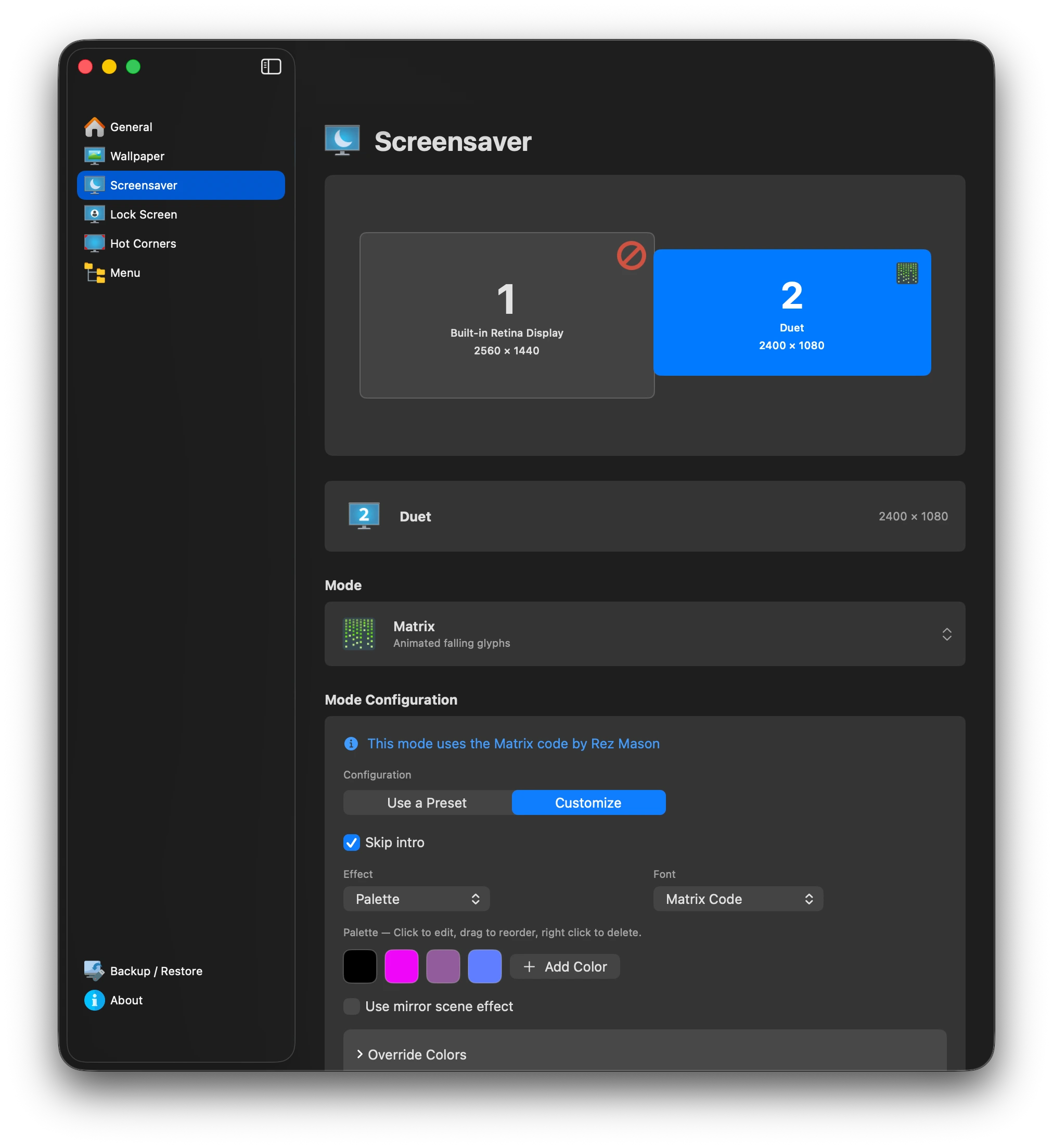
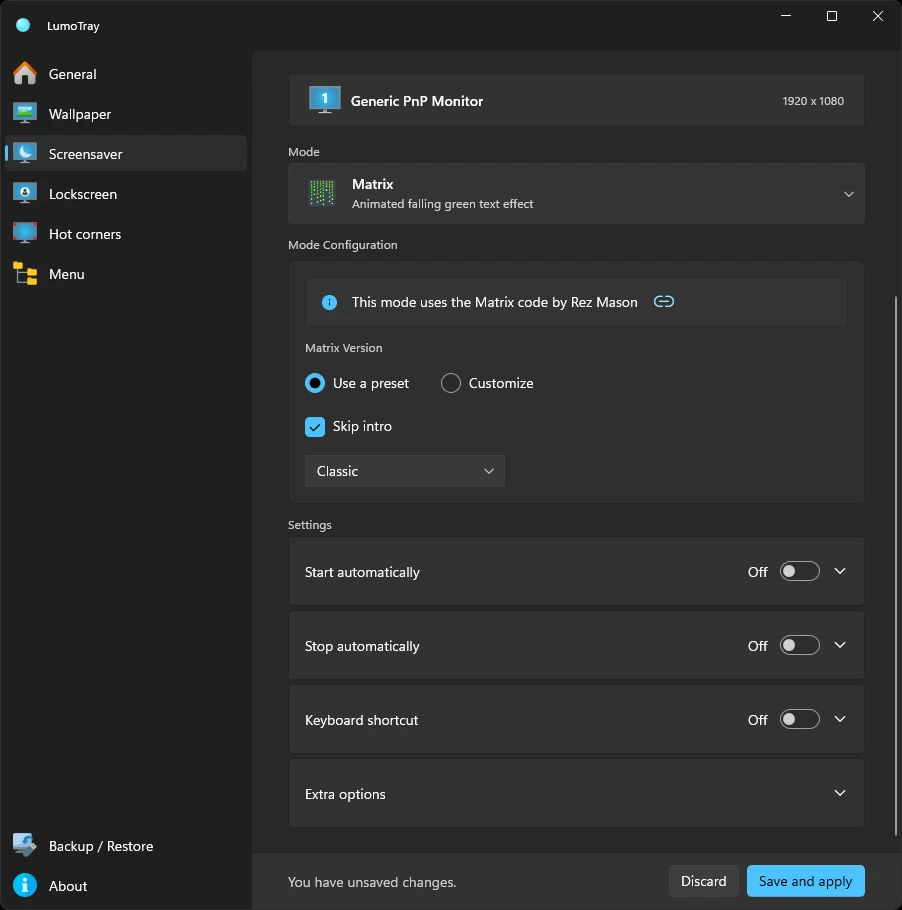
A spare monitor can become a clock while the main display stays active.
Countdowns, alarms, stopwatches, PDFs, webpages, and remote artwork turn idle displays into useful surfaces.
Choose the input that closes a presentation, suppress it over fullscreen apps, and configure independent delays.
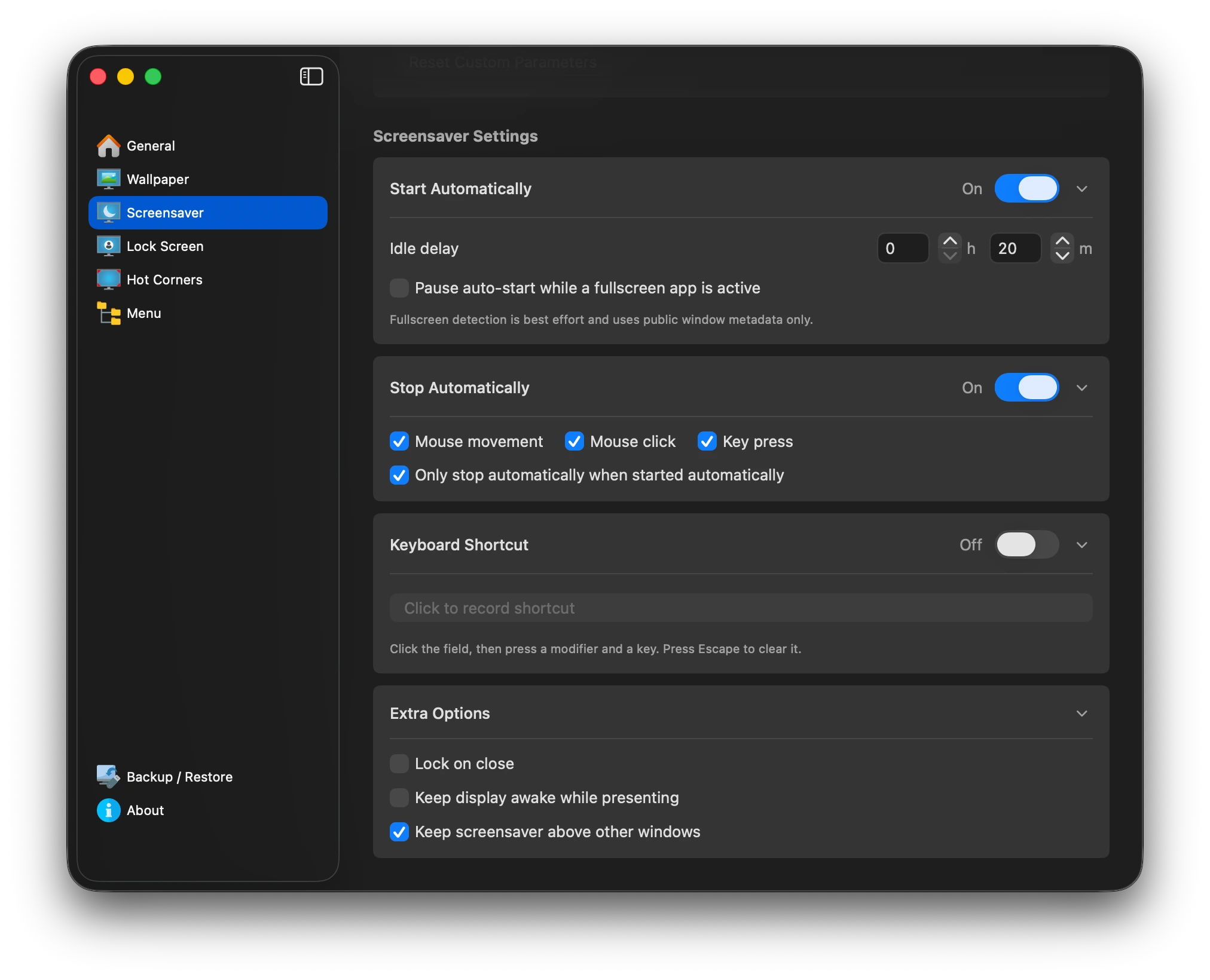
Start, stop, and shortcut settings
Choose the idle delay, pause automatic starts while a fullscreen app is active, and decide whether mouse movement, a click, or a key press stops the screensaver.
For on-demand use, record a keyboard shortcut. Extra options let you lock on close, keep the display awake while presenting, and keep the screensaver above other windows.
An exit that is always in reach
Move the mouse to the top of the screen and the close bar slides into view. Use it to close any LumoTray screensaver mode whenever you are ready to return to the desktop.
Available modes
macOS
A native menu-bar app manages fullscreen presentations. It is not a system .saver module and does not replace macOS security.
Explore LumoTray for Mac →Windows
Presentations can run independently on each monitor and can be started from the tray, shortcuts, hot corners, or idle timers.
Explore LumoTray for Windows →