
Dual Monitor Tools vs LumoTray: Features Compared
Compare Dual Monitor Tools and LumoTray for wallpapers, cursor control, window management, hot corners, and screensavers. See which one fits your setup.
Dual Monitor Tools and LumoTray both have a place on a multi-monitor Windows desk. The useful comparison is the work you want to do: control the pointer and move windows, or configure what each display shows.
What Dual Monitor Tools is
The official DMT overview describes modules for cursor control, launching and positioning applications, snapshots, moving windows with hotkeys, and changing wallpaper. The tools can be installed together or used for a particular workflow.
DMT's download page documents an installer and a portable ZIP. Check its requirements and current documentation for the features you plan to use.
What LumoTray is
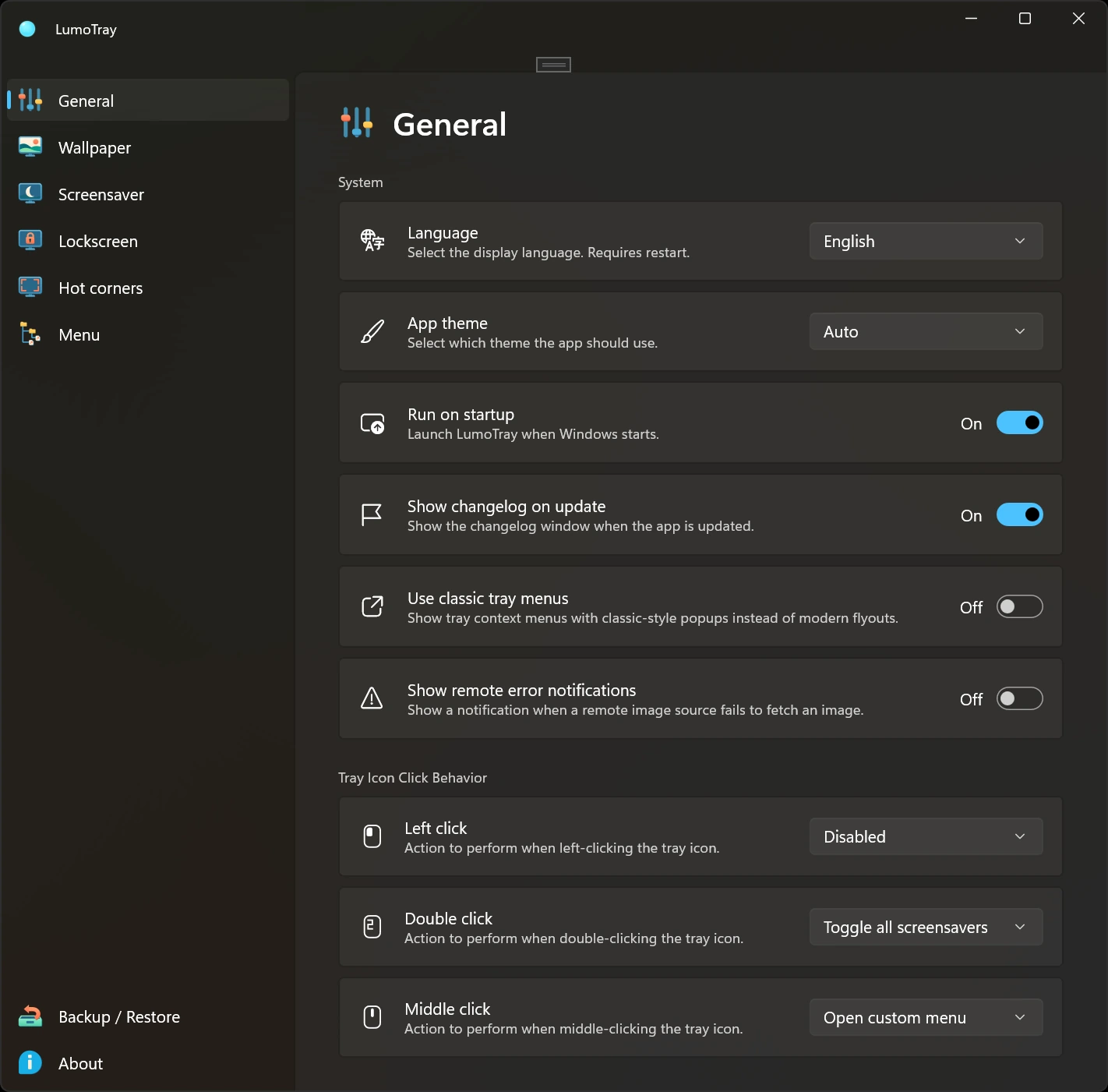
LumoTray is a Windows 11 tray app with per-monitor wallpaper and screensaver settings, one managed Windows Lock Screen background, hot corners, and a custom shortcut menu.
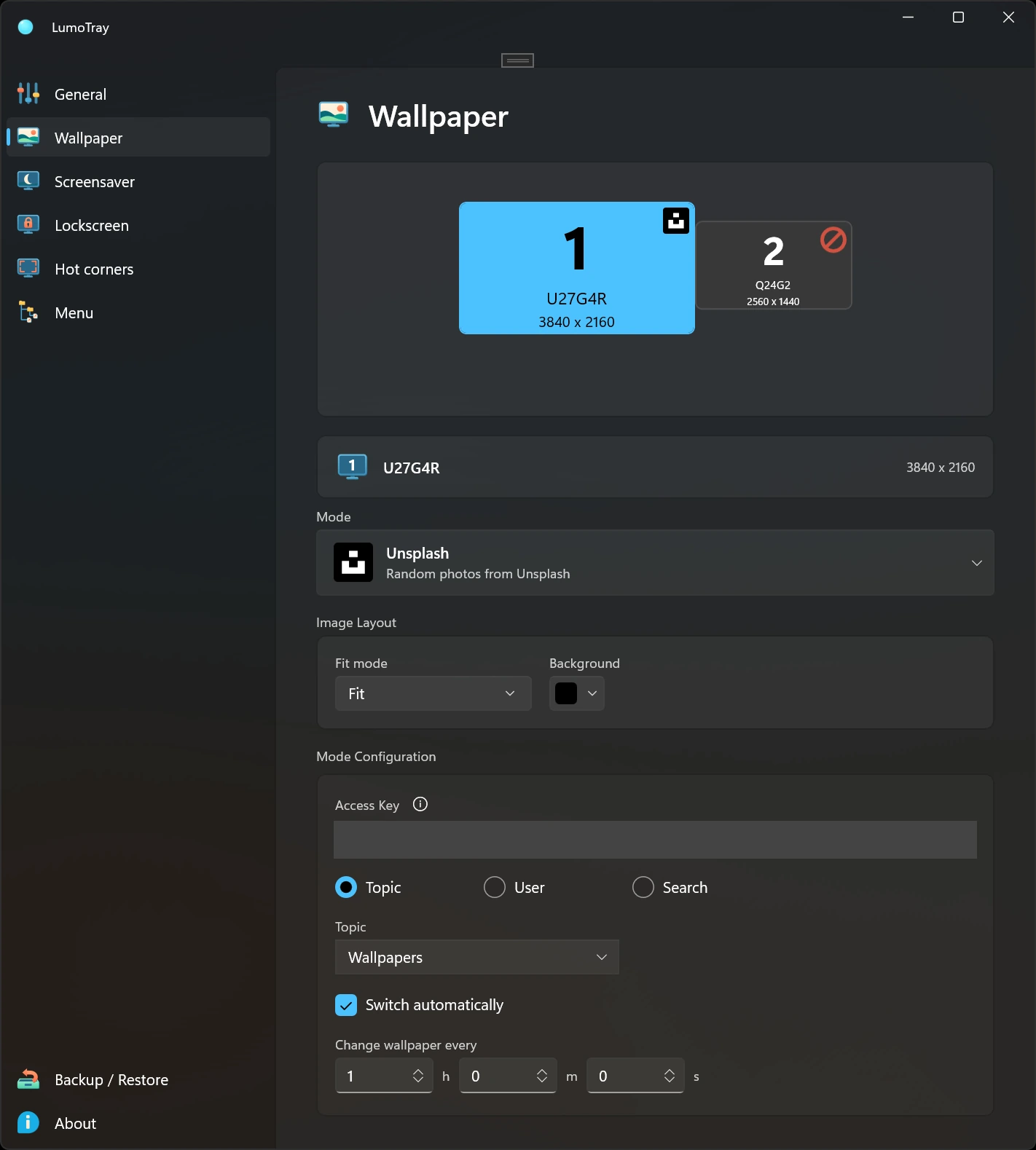
Select a display, choose its wallpaper or screensaver mode, and configure that display independently. For example, keep an image on the main screen while a slideshow or clock uses a side display.
Wallpaper and screensaver features compared
Wallpaper management
DMT includes a Wallpaper Changer module. Compare its source and layout settings with the arrangement you need rather than assuming it only handles one image.
LumoTray offers local images and slideshows, online sources, and live modes such as video and webpages. Each physical display has its own mode and settings. Explore the wallpaper manager for the available options.
Neither a feature list nor this comparison establishes which tool will use fewer resources or handle every display change better. Test the content, monitor layout, and reconnect behavior you actually use.
Screen savers
The DMT Screen Saver is a Windows .scr that displays wallpaper generated by the DMT Wallpaper Changer.
LumoTray runs app-managed fullscreen presentations with modes including clocks, slideshows, artwork, video, and music visualizers. You can run a screensaver on one monitor while continuing to use another. These presentations are not installed as .scr files.
Cursor controls, hot corners, and menu features compared
DMT's Cursor and Swap Screen modules are relevant when you want to constrain the pointer or move windows with hotkeys. Its Launcher module also opens and positions applications.
LumoTray's hot corners trigger supported actions such as starting a screensaver, opening the custom menu, showing the desktop, locking the session, or launching an app. Its custom tray menu organizes apps, files, folders, websites, and Windows shell targets such as scripts.
These are different interaction styles. Compare the actual controls you need rather than treating either tool as a replacement for every module in the other.
Setup and daily use
DMT provides installation and portable-use instructions on its website. LumoTray is distributed through the Microsoft Store and keeps its controls in one tray app. Its current Windows build supports Windows 11 on x64 and ARM64.
Which one fits your setup
Choose DMT for its documented cursor, window-hotkey, and launcher workflow. Consider LumoTray when the main goal is wallpaper variety, app-managed screensavers, hot corners, and a personal tray menu. If you use both, avoid assigning competing wallpaper managers to the same screen and test their interaction on your own setup.