
DisplayFusion vs LumoTray: Windows 11 Features Compared
Compare DisplayFusion and LumoTray for Windows 11 wallpapers, screensavers, taskbars, hot corners, and everyday multi-monitor use.
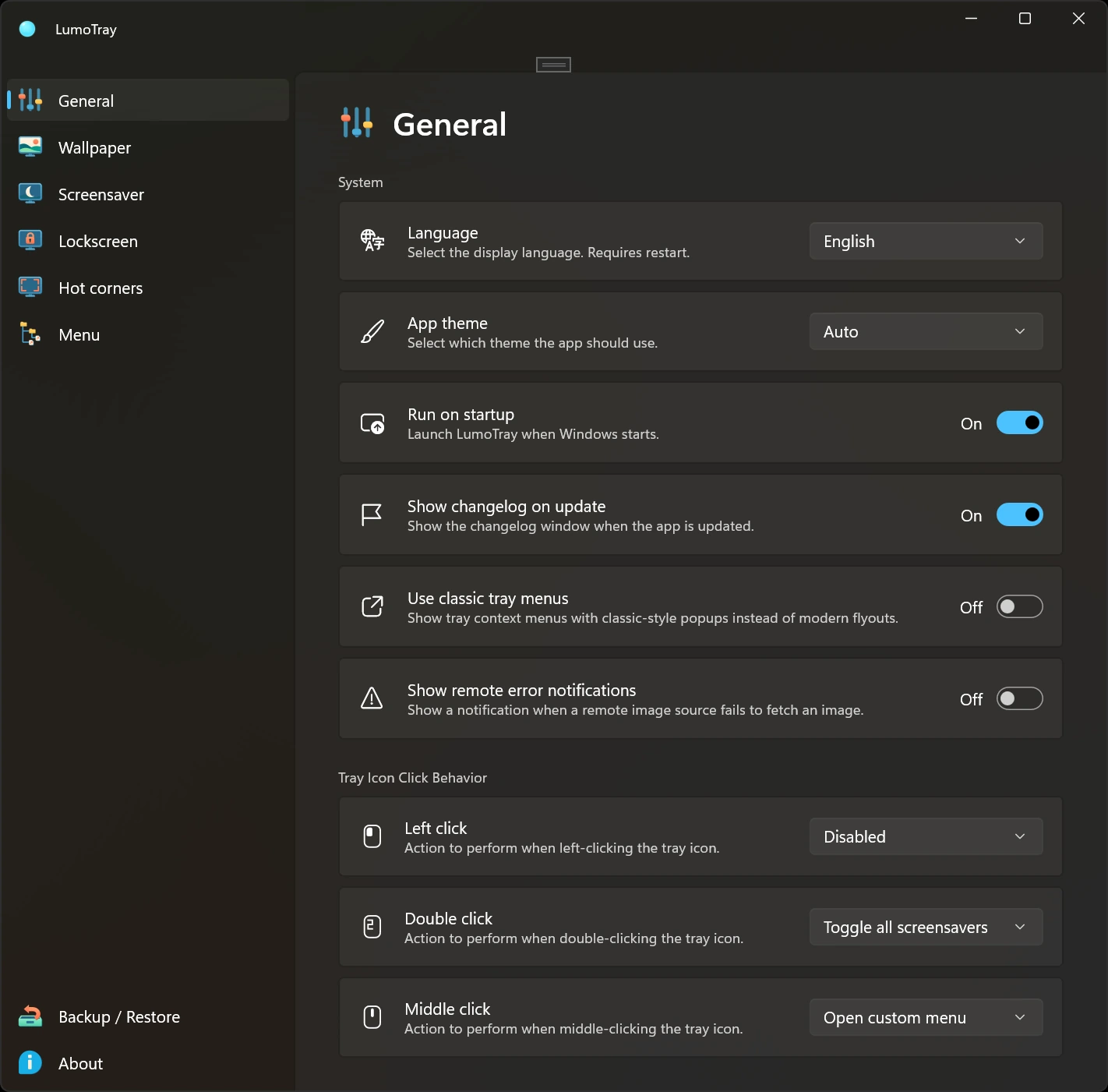
DisplayFusion and LumoTray both provide tools for a multi-monitor Windows setup. Compare the controls you need before deciding whether to use a broad monitor-management suite or a tray app focused on display content and quick actions.
What DisplayFusion does
DisplayFusion's official feature overview covers multi-monitor taskbars, wallpaper, monitor configuration and splitting, window-management functions, and other desktop controls.
Its screensaver documentation also describes independent screensavers per monitor and built-in screensavers, including photo slideshows. The earlier version of this comparison understated that capability.
What LumoTray does
LumoTray is a Windows 11 tray app for per-display wallpapers and app-managed screensavers, one Windows Lock Screen background, hot corners, and a custom menu. It is a native WinUI app from an independent developer.
DisplayFusion and LumoTray features compared
Wallpaper management
Both apps provide wallpaper controls for multiple monitors. DisplayFusion documents local and online image sources as part of its wallpaper tools.
LumoTray has separate modes and settings for each physical display. Use an image or slideshow on one screen, a supported online source on another, or a live mode such as video, a webpage, or a music visualizer. The wallpaper feature page describes the available modes.
Taskbars and window management
DisplayFusion's taskbar, window, and monitor-layout tools are relevant if you want to change how you arrange and reach applications across screens. LumoTray does not replace the Windows taskbar or provide a general window-management system.
Windows also has a built-in taskbar-on-all-displays setting. Compare the controls on your installed build with the extra controls you need.
Screensavers
DisplayFusion supports per-monitor screensavers and includes its own screensaver content. It should not be described as merely launching one system screensaver.
LumoTray's screensavers are app-managed fullscreen presentations, rather than .scr files. Each display can have a clock, slideshow, video, webpage, or another supported mode, with its own idle and exit settings. Follow the single-monitor screensaver guide to try that workflow.
Hot corners and custom menus
LumoTray has hot corners for supported screen-corner actions and a custom tray menu for apps, files, folders, websites, and Windows shell targets such as scripts.
Check DisplayFusion's current functions and automation documentation if you want to compare a specific trigger or launcher workflow. This comparison does not claim that a feature name alone establishes exclusivity.
Lock Screen images
On Windows, LumoTray manages one Lock Screen background with static or rotating image sources. It does not provide a different Windows Lock Screen background for every monitor or override organization policy.
Windows 11 compatibility
LumoTray's current Windows build supports Windows 11 on x64 and ARM64. For either tool, check the current requirements and test your monitor layout, docks, fullscreen apps, and chosen content. This comparison is not a benchmark or a guarantee about resource use or compatibility.
Which app fits your setup?
DisplayFusion is worth exploring when taskbars, window management, and monitor profiles are central to your workflow. LumoTray brings wallpaper modes, app-managed presentations, hot corners, and a custom tray menu together. Use the actual controls and behavior on your own screens to make the choice.