
How to Set Up Different Wallpaper Slideshows on Each Monitor in Windows 11
Windows 11 shares one slideshow folder and timer. LumoTray can give each monitor its own folder, schedule, fit mode, and shuffle setting.
Windows 11 technically supports wallpaper slideshows across multiple monitors. It just does not give you much control over what goes where, and the whole thing has a habit of falling apart after a few sleep cycles.
If you have two or three monitors and you want a clean, predictable rotation where the left screen pulls from one folder and the right screen pulls from another, Windows cannot do that. The built-in slideshow uses one folder and one timer for all displays. That works for some setups, but it is not a per-monitor slideshow system.
This post covers what Windows 11 actually does with slideshows, why the built-in feature keeps breaking for people, and how to set up independent slideshows per monitor with LumoTray.
What Windows 11 slideshows actually do
Here is how the built-in Windows 11 slideshow works:
- Right-click the desktop, choose Personalize > Background.
- Set the background type to Slideshow.
- Pick one folder. That is your only folder.
- Set one interval. That interval applies to every display.
- Turn shuffle on or off. Globally.
Windows then picks a different image from the folder for each connected monitor and cycles through them. Each screen shows a different image at any given moment, which is fine as long as you do not care which image lands where.
What you cannot do:
- Give Monitor 1 its own folder with landscape photos and Monitor 2 its own folder with abstract art.
- Set different change intervals per screen.
- Run a slideshow on one monitor while keeping the other static.
- Have one screen pull from Unsplash while another uses your local folder.
Microsoft confirmed this limitation explicitly. In a Microsoft Q&A thread from early 2026, a Microsoft support responder stated: "Windows still does not support fully independent slideshow behavior per monitor. The built-in personalization system only uses one slideshow source and one timing engine globally across all monitors."
Another Microsoft Q&A thread from 2025 put it plainly: there is no built-in way to keep slideshow images in sync on both screens either. Windows treats each display separately when picking the next image, but it does not let you control which image goes where, sync them, or split them across folders.
The reliability problem is at least as bad
Even the single-folder slideshow that Windows 11 does support has a bad habit of giving up.
A BleepingComputer forum thread (#804947) opened in January 2025 and is still active as of July 2026. The original poster described the slideshow either not changing images at all, or working for a few cycles and then silently reverting to a single static picture. Several replies confirmed the same behavior across different machines.
The most common triggers seem to be:
- Sleep and wake. Users report the slideshow stops rotating after the PC resumes from sleep. Sometimes the wallpaper goes black entirely. A Reddit thread from March 2025 shows the same pattern.
- Virtual desktop switching. Switching between virtual desktops can cause the slideshow to revert to a static image. This one is common enough that someone wrote Windows11SlideshowFixer on GitHub, a dedicated startup task that keeps re-applying the slideshow setting every time Windows drops it.
- Folder or path issues. A Microsoft Q&A response from September 2025 noted that renaming the wallpaper folder to something without spaces sometimes fixes the slideshow dropdown refusing to appear at all.
Between the missing per-monitor control and the reliability problems, the built-in Windows slideshow is fine in theory but fragile in practice.
When you actually need independent per-monitor slideshows
You might not need this. If you have one monitor and one folder of wallpapers, the built-in Windows slideshow probably covers you. When it works.
Independent per-monitor slideshows become useful when your monitors do different jobs. Some common setups:
- A main 27-inch display rotating through high-resolution landscape photos, with a vertical side monitor cycling through portrait-oriented images.
- Work-related wallpapers on the main screen during work hours, and personal photos on the second screen.
- A rotating Unsplash feed on one monitor and a local curated folder on another.
- One screen showing a static image or solid color while the other rotates.
- A dashboard-style webpage on a spare monitor while the primary displays rotate through images.
Windows 11 cannot do any of these. You need a tool that treats each monitor as an independent wallpaper target.
Setting up independent slideshows with LumoTray
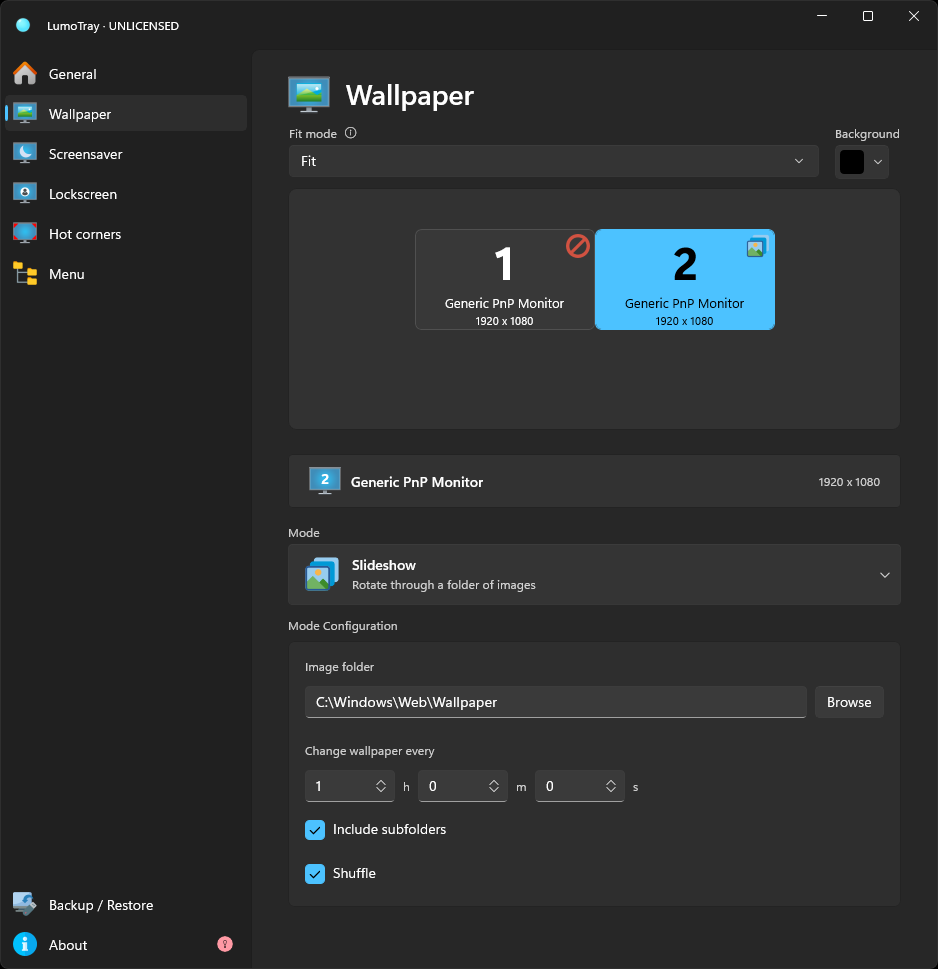
LumoTray's wallpaper page keeps those choices separate. Each display gets its own mode, source, and settings rather than sharing one global slideshow configuration.
Here is how to set it up:
- Open LumoTray from the system tray.
- Go to the Wallpaper page.
- Use the monitor selector to pick a display.
- Set Mode to Slideshow.
- Browse for the folder you want that monitor to use.
- Set the change interval and decide whether to include subfolders.
- Turn shuffle on or off.
Repeat for each monitor. Monitor 1 can pull from C:\Wallpapers\Landscapes and Monitor 2 from C:\Wallpapers\Abstract. Different folders, different screens, no shared timer forcing them into the same behavior.
Beyond local folders
The slideshow mode is the most direct comparison to Windows' built-in feature, but LumoTray has other wallpaper sources that work per-monitor too.
- Unsplash: rotating curated photos, with optional keyword filtering so the feed stays on-theme.
- Wallhaven: similar concept, pulling from Wallhaven's collection with tag-based filtering.
- Bing image: the daily Bing wallpaper, per-monitor.
- NASA APOD: the Astronomy Picture of the Day, which is a nice option for a spare monitor.
- Windows Spotlight: pull the Spotlight image without relying on the lock screen.
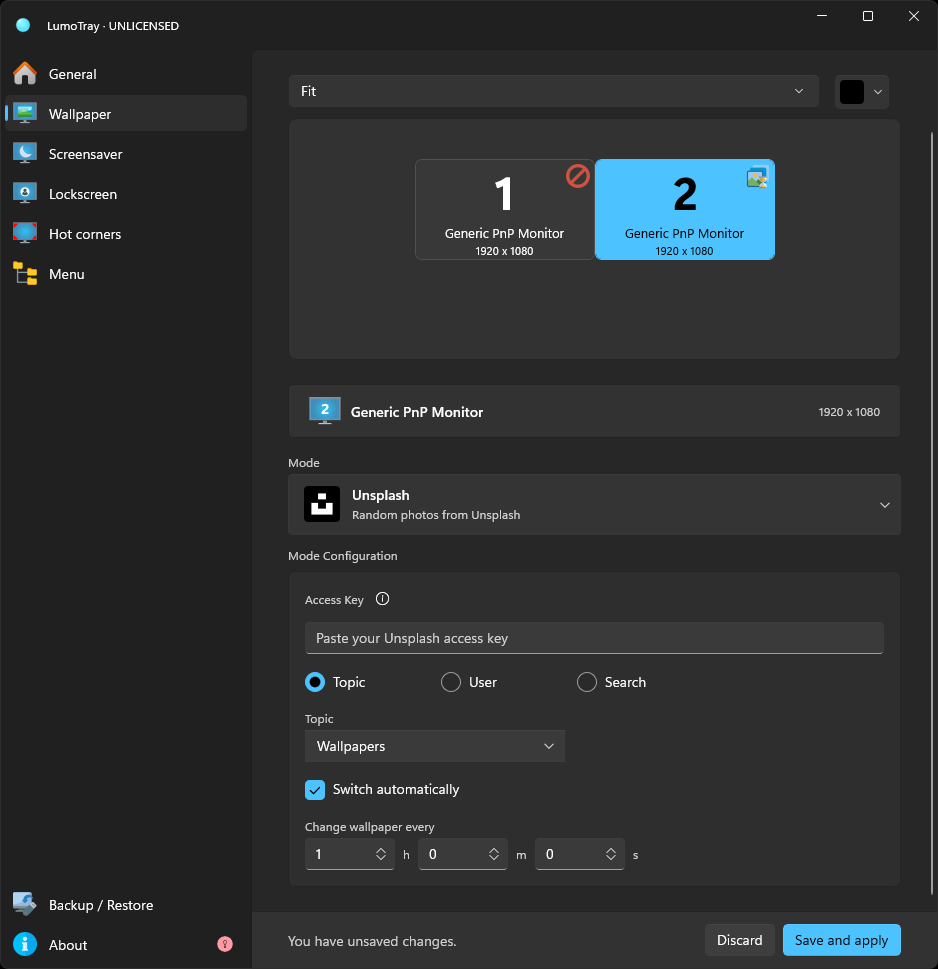
Each of these can be set independently per monitor. You could have Bing on one screen, Unsplash on another, and a local slideshow folder on the third. Windows 11 does not let you mix sources like this.
Fit modes per monitor
Another thing that matters on a mixed-monitor setup: fit modes. A 16:9 image looks wrong stretched across a vertical 9:16 display. LumoTray lets you set a per-monitor fit mode (fill, fit, stretch, center, tile, span) so each screen's wallpaper looks right for its aspect ratio.
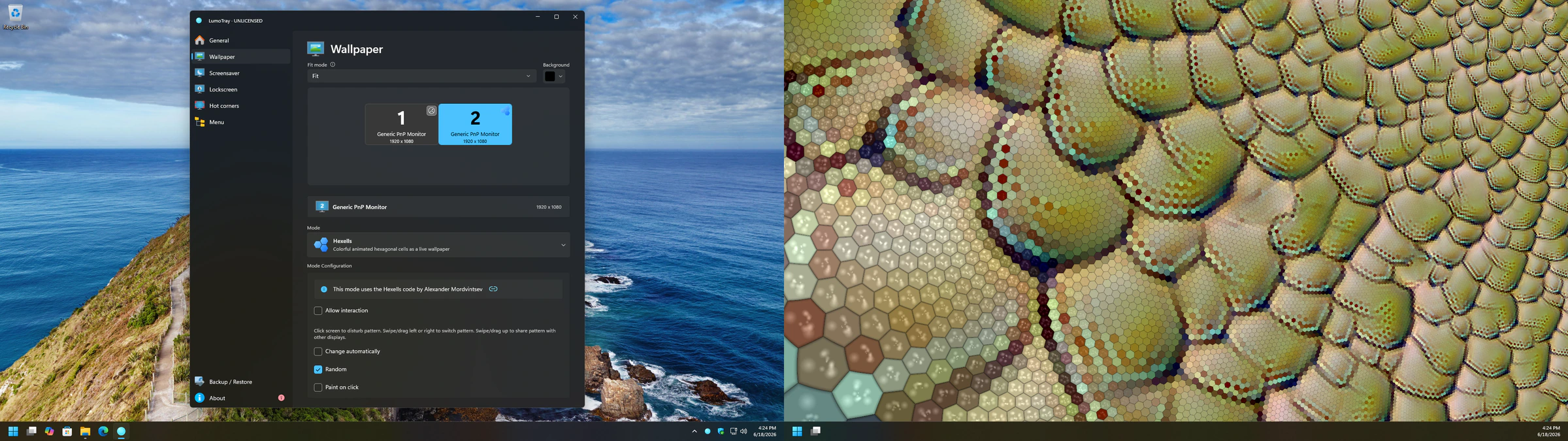
This is particularly useful if you have one ultrawide monitor and one standard monitor. Windows' fit options apply globally, so what looks correct on the ultrawide stretches awkwardly on the standard display. LumoTray applies fit independently.
Does it survive sleep and display changes?
One of the things that makes Windows' built-in slideshow fragile is display reconnection. When you unplug a laptop from a dock or a monitor wakes from sleep, Windows can reassign display IDs, and the slideshow sometimes does not recover.
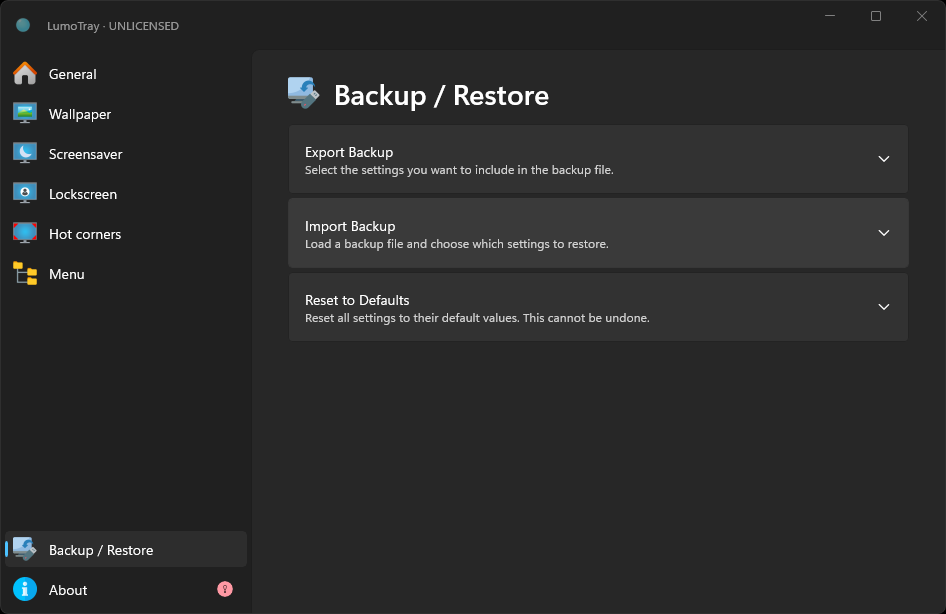
LumoTray handles display reconnect events and re-applies wallpaper configurations to the correct monitors. It still relies on Windows reporting the displays correctly, which is not always perfect, but it actively restores the per-monitor config rather than silently falling back to a single image. In the settings, you can also save your wallpaper configuration as a backup page, which means you can restore a full multi-monitor layout with one click if something does go wrong.
When to stick with Windows' built-in slideshow
Use the Windows slideshow if:
- You have one monitor and one folder of wallpapers.
- You do not mind the occasional glitch after sleep or a virtual desktop switch.
- You do not need different content or timing per screen.
For that narrow use case, the built-in tool is already there, and adding a third-party app would be unnecessary.
Use a dedicated tool like LumoTray if:
- You have two or more monitors and want independent control over what each screen shows.
- You want to mix sources: a local folder on one display, Unsplash on another, a static image on a third.
- You want the wallpaper setup to survive sleep, display reconnects, and monitor swaps without manual intervention.
- You also want screensaver control, hot corners, or a custom tray menu in the same app.
Independent per-monitor slideshows are one of those features that sounds niche until you have a multi-monitor desk. Once you have set it up properly, you stop thinking about it. That is the whole point.
Download LumoTray and go to the Wallpaper page. Pick a monitor, pick a slideshow folder, and see if it fits your setup.