
LumoTray for Mac Is Here, With a New Website and LumoTray for Windows v2.3.3
LumoTray for Mac enters public beta alongside a redesigned website and LumoTray 2.3.3 for Windows, with one personal license for both platforms.
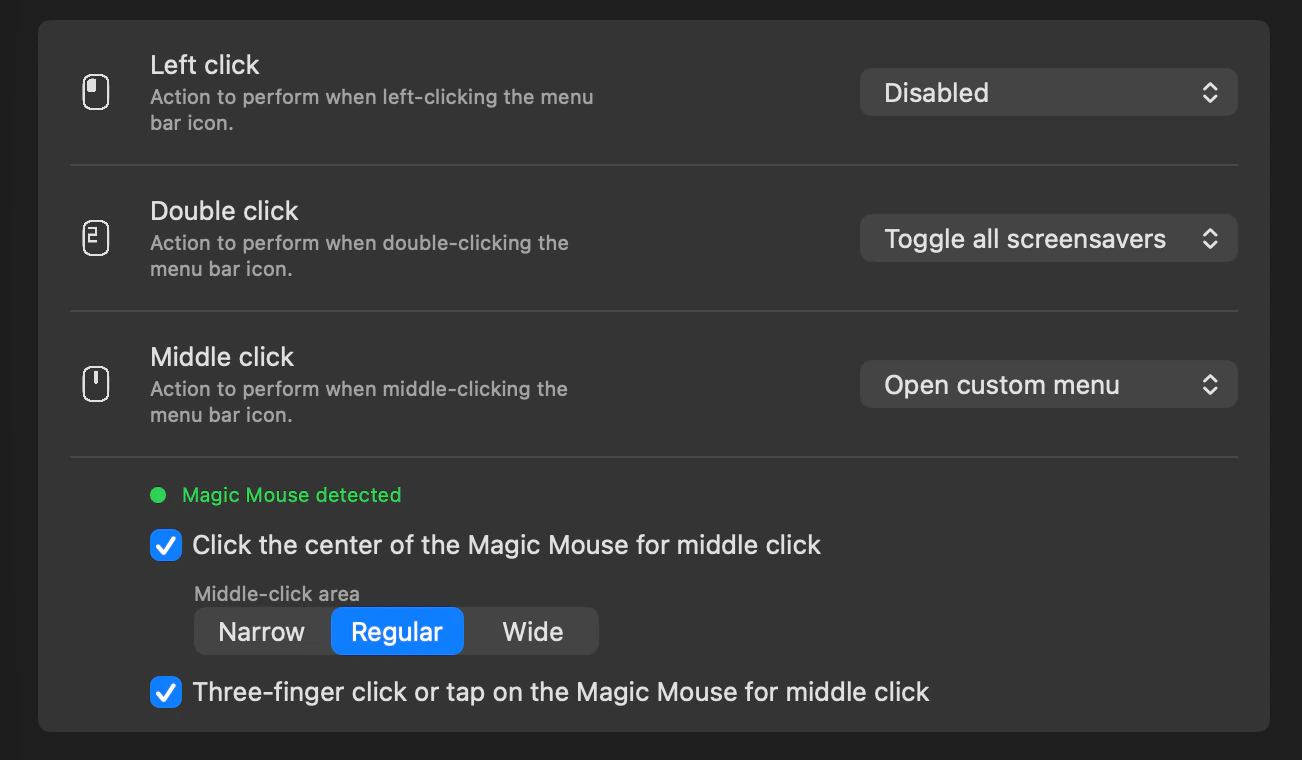
Today is a bigger release day than usual. LumoTray now has a new website, the first public Mac version is available, and LumoTray for Windows v2.3.3 is arriving alongside it.
The Mac release is the main event. LumoTray started on Windows almost four years ago, and bringing it to macOS meant reconsidering how the app should fit into a different desktop rather than simply reproducing the Windows version.
LumoTray is now available for Mac
LumoTray 1.0.0-beta.1 is the first public Mac build. It is a native menu-bar app for Apple silicon Macs running macOS 14 or later.
The basic idea will be familiar to Windows users: each display should be useful on its own. LumoTray lets you configure wallpapers, screensavers, Lock Screen images, hot corners, and a custom quick menu without treating a multi-monitor setup as one oversized screen.
Most of the Windows feature set is already present. On Mac, you can:
- Give each display its own static wallpaper, slideshow, online image source, or live scene
- Run a different fullscreen screensaver on each display, including clocks, artwork, videos, webpages, PDFs, shaders, and timers
- Assign hot-corner actions to individual displays or to the edges of the combined desktop
- Build a nested menu for applications, files, folders, and HTTPS websites
- Set independent post-login Lock Screen images across multiple displays
The app remembers settings for each physical display, which matters when a MacBook moves between a desk, a dock, and a standalone setup. Reconnecting a monitor should bring back the choices attached to that screen instead of leaving you to rebuild the arrangement.
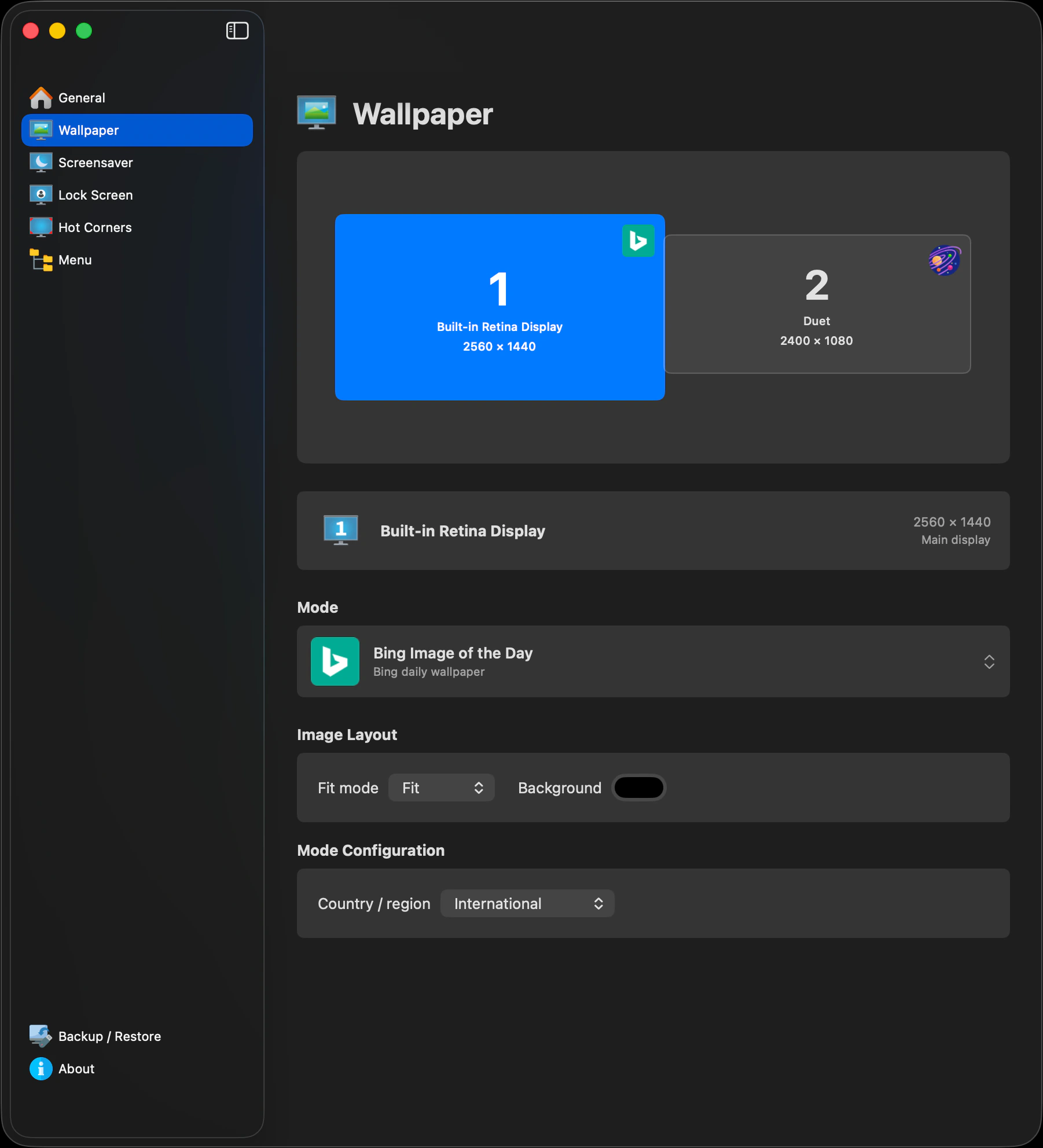
Built for the way macOS works
The Mac app is not a port of the Windows codebase. It has its own native settings interface, lives in the menu bar, and follows macOS conventions where the two systems differ.
Some of those differences are visible in the features themselves. LumoTray's Mac screensavers are fullscreen presentations managed by the app, not .saver modules. Lock Screen images apply after you sign in and do not alter the login window, FileVault screen, or authentication. The custom menu opens apps, files, folders, and secure websites, but deliberately does not run arbitrary shell commands or scripts.
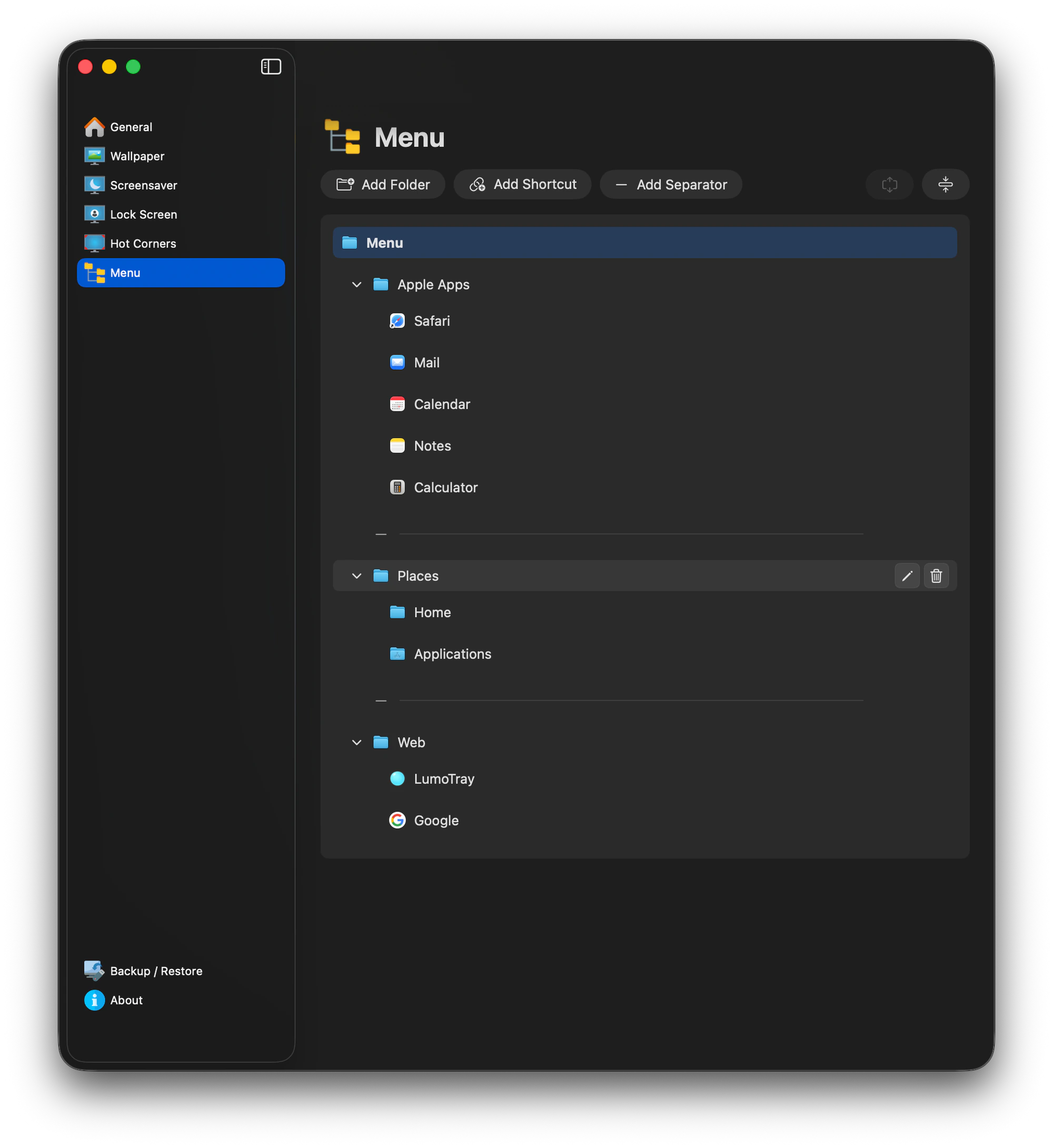
LumoTray's Hot Corners are more complete than the native macOS version for multi-monitor setups. You can assign corners to the primary display, every display, or the combined desktop, then choose display-specific actions. Activation radius, dwell delay, drag detection, and fullscreen behavior provide more control over when a corner fires.
They are built to coexist with the Mac rather than take over from it. LumoTray Hot Corners do not require Accessibility, Input Monitoring, Screen Recording, or synthetic input permissions, and they can be used alongside the corners already configured in macOS.
A middle click for Magic Mouse
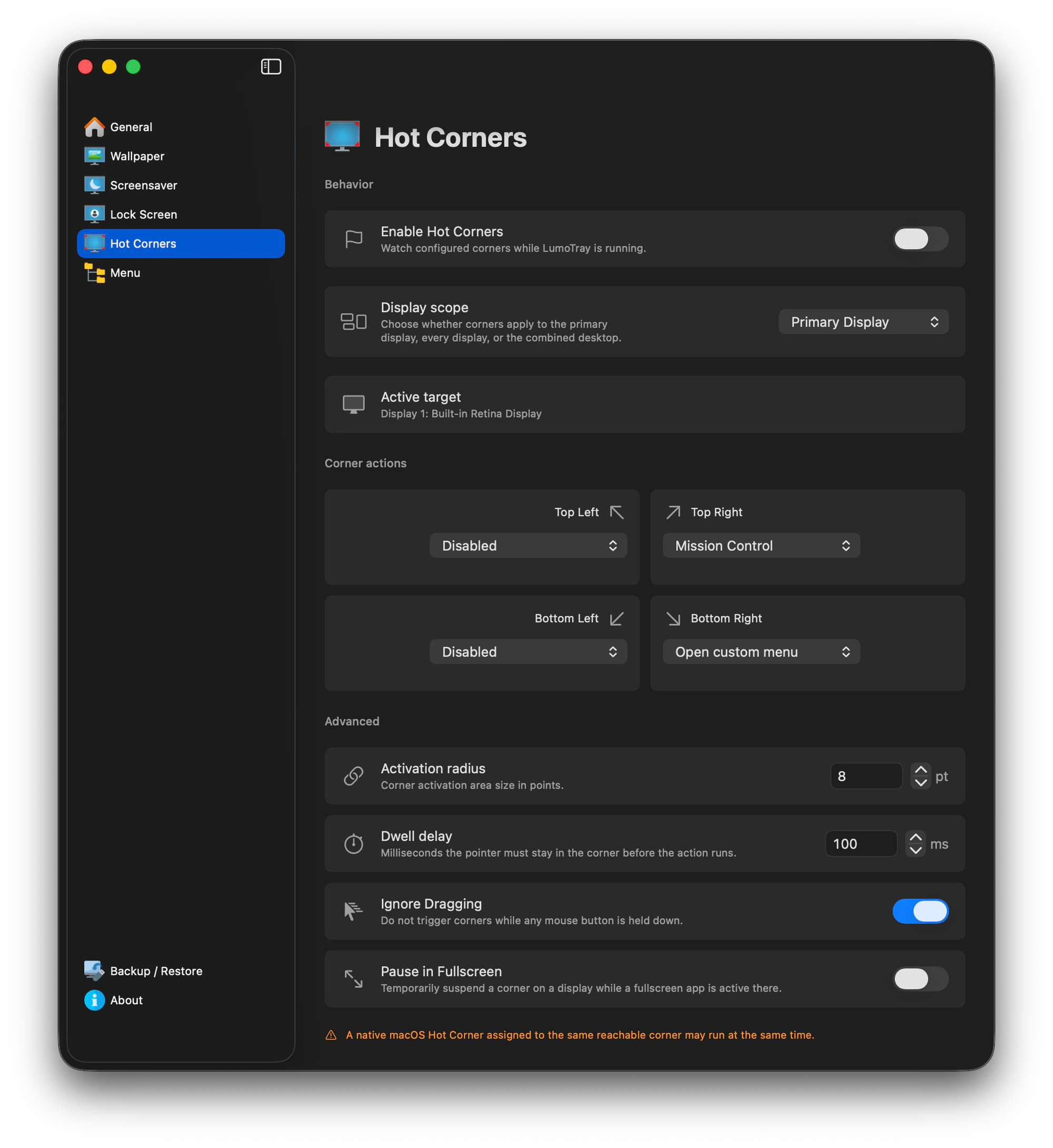
The Mac release also adds something that is not part of the Windows app: a system-wide middle-click extension for Magic Mouse.
You can use a center click or a three-finger click or tap as a middle click. It works anywhere the receiving app supports middle-click behavior, such as opening a browser link in a new tab or closing a tab. The same input can also be assigned to an action on the LumoTray menu-bar icon.
It is a small addition, but it solves the sort of daily friction that originally led to LumoTray in the first place.
Why the beta label?
This is a complete, usable first release, but it is also the first time the Mac version will run across a much wider range of real display setups, docks, and day-to-day workflows. The beta label leaves room to address what comes back from that broader testing.
Automatic updates are built in, so future beta releases can arrive through the app after the first installation. The current download supports Apple silicon and requires macOS 14 or later. Intel Macs are not supported at this stage.
You can read more and download LumoTray for Mac.
A new website for both versions
The new website reflects what LumoTray has become. It is no longer a Windows download page with a few supporting pages around it. Mac and Windows now have their own product pages, shared feature guides explain where the apps match and where they differ, and the download page puts both versions in one place.
There is also a full changelog, a unified blog, clearer license information, and a closer look at wallpapers, screensavers, Lock Screen images, hot corners, and the custom menu. The goal is to make it easier to understand what LumoTray does before installing it, especially where operating-system limits affect a feature.
The same one-time $19 personal license works on Mac and Windows. Both apps remain fully functional without a license, with reminders and unlicensed markings instead of locked features.
LumoTray for Windows v2.3.3 arrives at the same time
Windows users also have a new release. LumoTray 2.3.3 brings several fixes and refinements:
- Resetting LumoTray to its defaults now preserves an existing license
- Custom menus opened from Hot Corners now appear at the activated corner, open inward, and stay aligned correctly at display edges
- App notifications have been fixed in packaged test and release builds
- WebView2 and supporting components have been updated for more reliable embedded web content
This Windows version supports Windows 11 on x64 and ARM64. You can download LumoTray for Windows or update through the Microsoft Store.
One release day, two native apps
LumoTray now has a proper home for both platforms and two native apps built around the same principle: every display should be configurable on its own.
If you use a Mac, I would particularly like to hear how this first build behaves with your monitors, dock, and everyday setup. You can find both versions on the download page.