
The audio update: LumoTray 2.4 and Mac beta.5
Butterchurn and Warp Visualizer bring music visuals to LumoTray, as live wallpapers and screensavers on Windows and Mac.
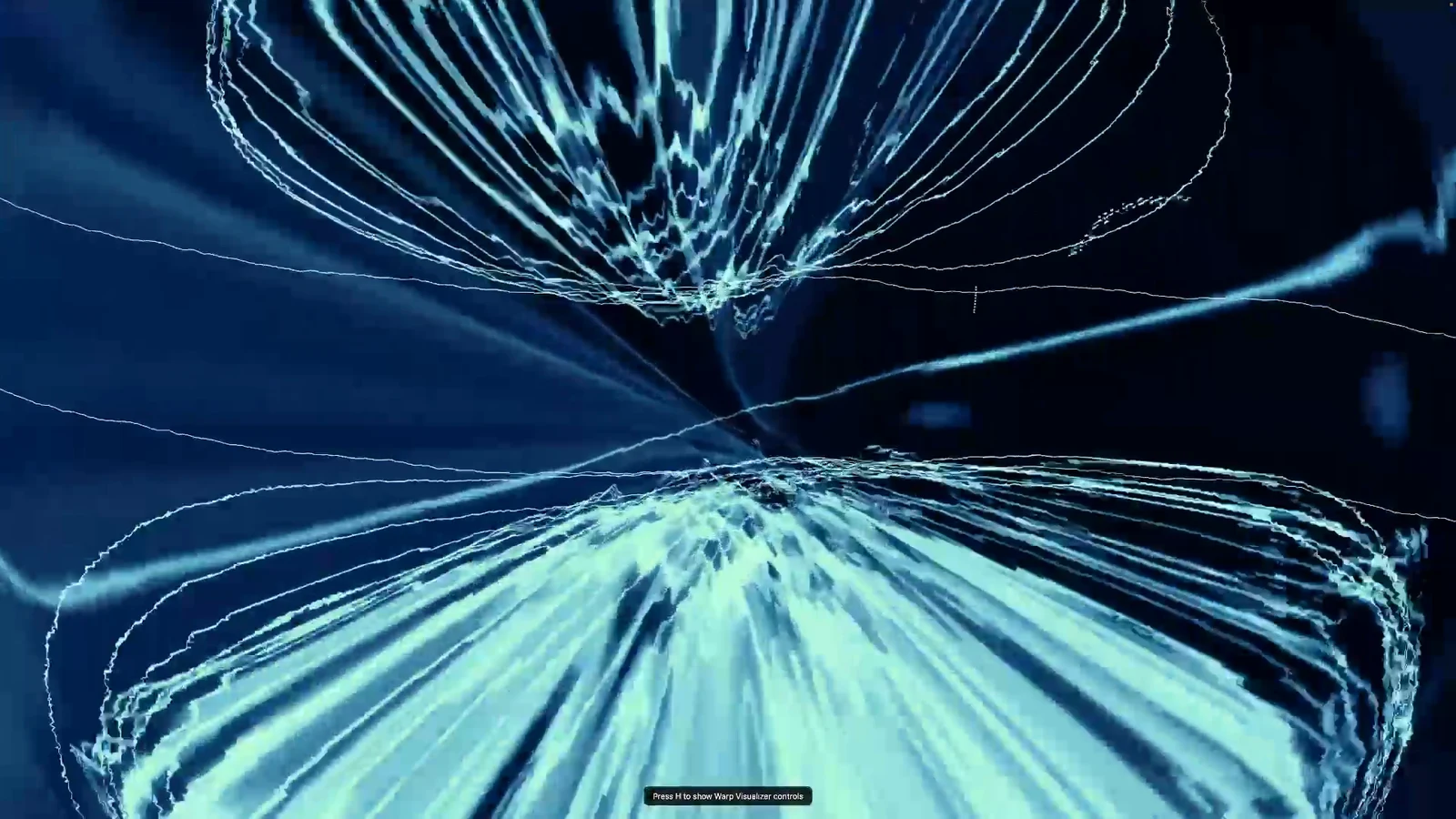
This release is mostly about music. LumoTray 2.4 for Windows and 1.0.0-beta.5 for Mac add two modes that react to the audio playing on your computer: Butterchurn and Warp Visualizer. Both work as live wallpapers and screensavers.
You can put one on a spare monitor while you work, or use it fullscreen when you just want to listen to something. Each display has its own settings, and wallpaper and screensaver settings are separate too.
Butterchurn
If you remember MilkDrop, this will look familiar. Butterchurn brings those shifting patterns and colors to LumoTray, with 395 presets included. You can shuffle through them, keep a favorite on screen, or change how often they switch and how long the transitions take.
There are also thousands of custom MilkDrop presets online. Search Google for "milkdrop presets" to find collections you can try. LumoTray can import compatible presets from a custom folder; compatibility varies between collections. The included presets are ready to use if you would rather start there.
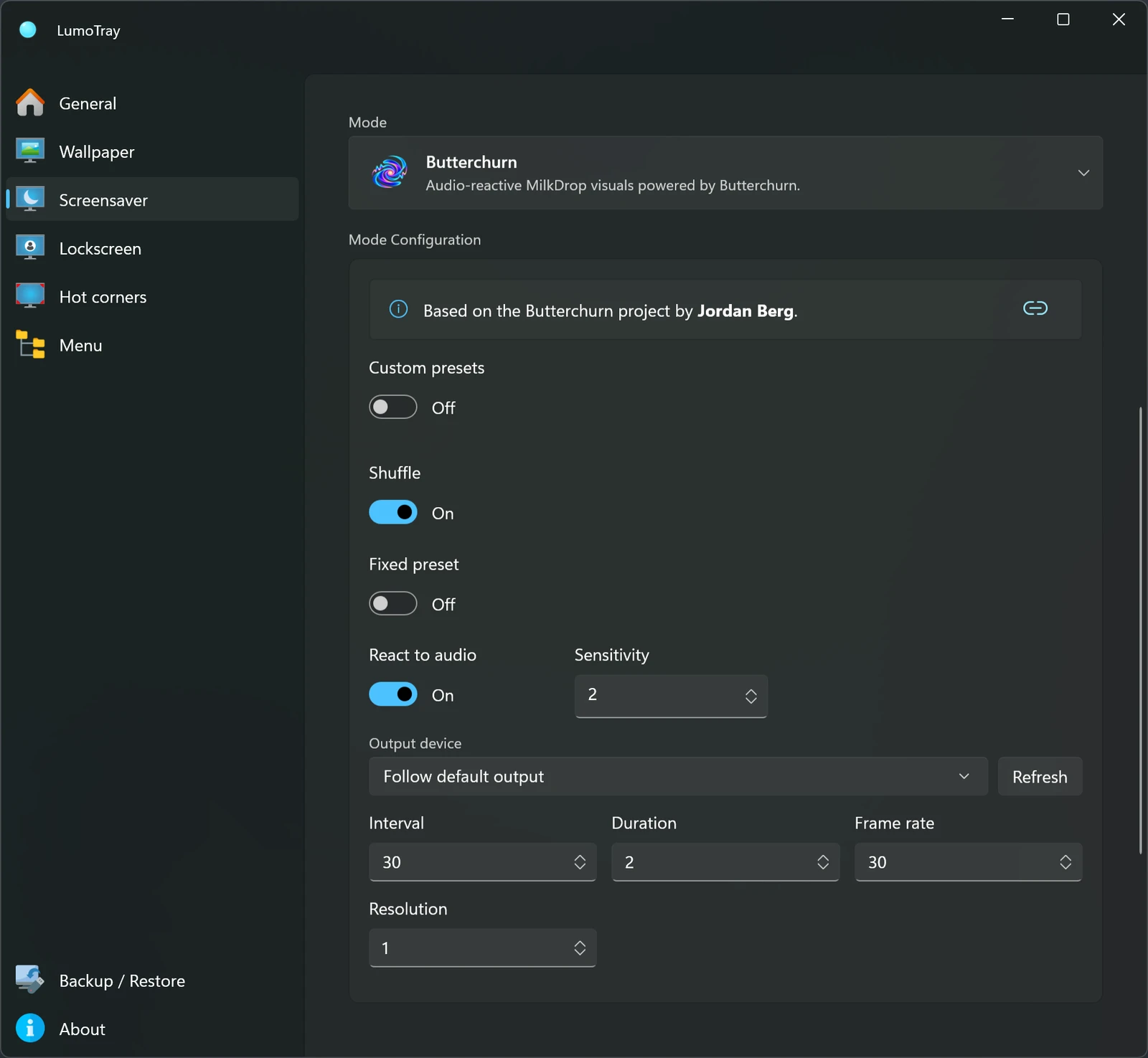
Butterchurn is the work of Jordan Berg. The presets give it a lot of variety; the clip above is only one example.
Warp Visualizer
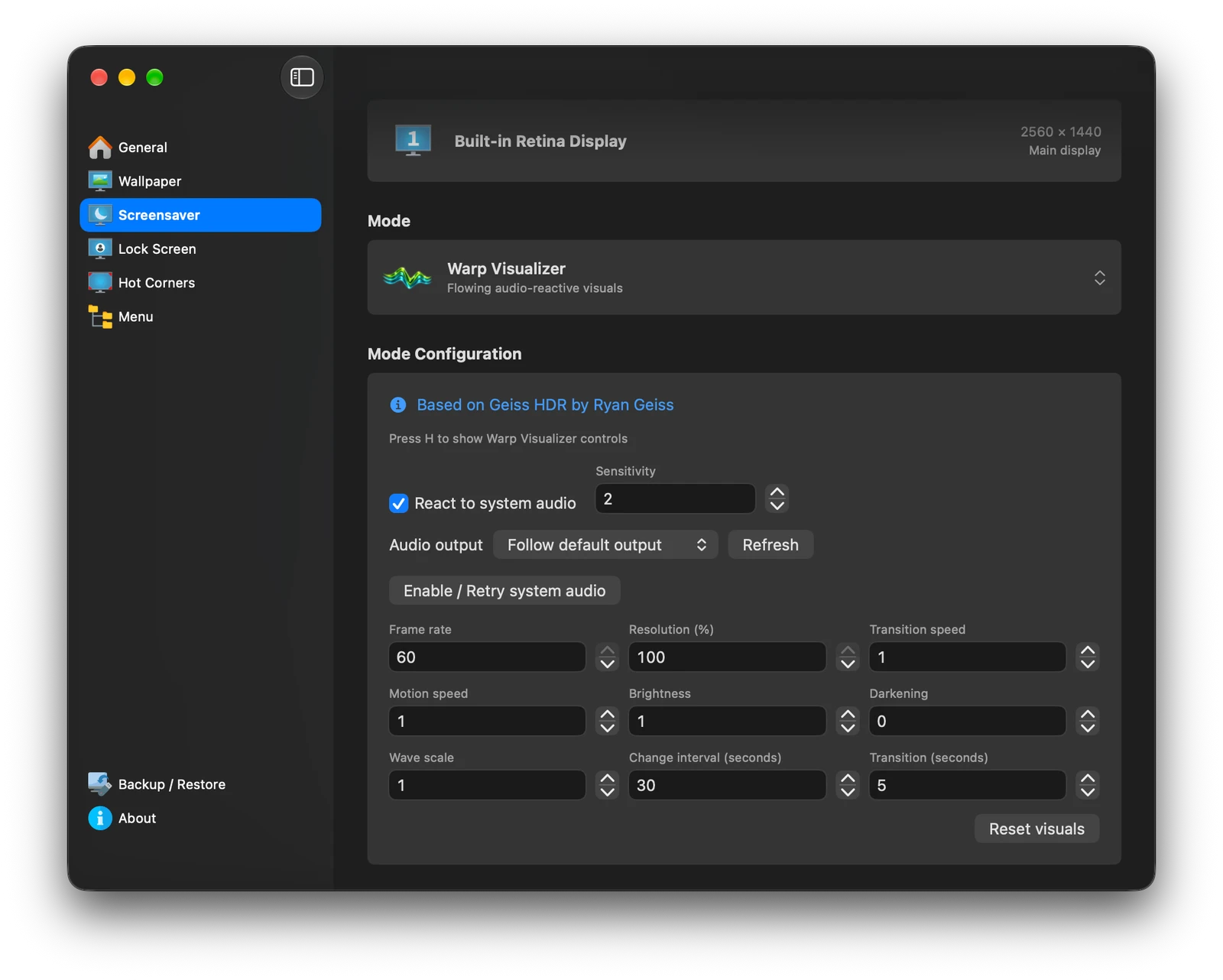
Warp Visualizer is based on Geiss HDR by Ryan Geiss. It has a different look: flowing waves and trails that bend and stretch as the music plays.
Motion speed, brightness, wave scale, and transitions are adjustable. HDR is used automatically when the display and renderer support it, with SDR output otherwise. Warp uses WebGPU, so support from the graphics hardware and the app's web renderer is required.
Setting up the audio
For either mode, choose an output device or leave it following the system default. The sensitivity control adjusts how strongly the visuals respond. You can also turn audio reaction off and let the visuals run on their own.
On Mac, audio reaction needs macOS 14.2 or later and permission to capture system audio. Use Enable / Retry system audio in the mode settings to set that up. On earlier supported macOS versions, or when audio access is unavailable, the visuals can still run without reacting to sound.
To try either mode, open Wallpaper or Screensaver, select a display, and choose Butterchurn or Warp Visualizer. Start with the defaults, play some music, and adjust from there.
Icons, shortcuts, and a few fixes
Settings and menus have a new set of blue icons on both platforms. The display numbers are larger, too, which makes them easier to pick out when you are choosing a monitor.








Recording a screensaver shortcut now shows the modifier keys as you press them, with guidance to help you finish a valid combination. This works for the all-displays shortcut and the shortcuts for individual displays.
Both versions have better menu icon handling. Windows also gets smoother custom menu editing and more reliable Bing and NASA EPIC downloads. On Mac, I fixed issues with menus reopening and quitting LumoTray.
Both versions are on the download page. Existing Windows installations update through the Microsoft Store; Mac installations receive updates through the built-in updater. The changelog has the full notes for each platform.