
How to Set a Video as Your Desktop Wallpaper in Windows 11
Windows 11 still does not have a built-in way to set a video as your desktop wallpaper. Not in the stable release, anyway.
Windows 11 still does not have a built-in way to set a video as your desktop wallpaper. Not in the stable release, anyway.
Microsoft first showed native video wallpaper support working in Insider Preview builds back in September 2025 -- Build 26220 and newer, to be specific. It supports common formats like MP4, MKV, MOV, and WebM, and it plays the video in a loop using the Desktop Window Manager, similar to how Windows Vista's DreamScene worked. WindowsLatest got it running and reported no meaningful power draw increase in their tests.
That was ten months ago. As of July 2026, the feature is still locked to Insider channels. There is no official release date, no mention in recent Patch Tuesday notes, and no sign of it in the 24H2 or 25H2 stable builds most people actually run. If you want a video playing on your desktop today, you need a third-party tool.
The VLC workaround (and why most people move on)
VLC can technically set a video as your desktop wallpaper. Right-click a playing video, go to Video, then Set as Wallpaper. It works -- sort of.
The problems stack up fast. VLC needs to stay open the whole time. If you close it, the wallpaper goes away. There is no multi-monitor control. There is no playlist support. And it does not survive a reboot without scripting or a startup shortcut. It is a clever trick, not a daily driver.
Most people try it once, realize it gets in the way, and either give up or look for something more purpose-built.
What third-party tools actually do
The real options for video wallpaper on Windows 11 today fall into a few camps:
Lively Wallpaper is free and open-source. It handles video files plus web-based and shader backgrounds, and it can pause playback when apps are fullscreen. Good starting point if you want something free and do not mind the occasional quirk.
Wallpaper Engine on Steam is the most feature-rich option out there, with a huge Workshop library of user-made animated and video wallpapers. It also has a reputation for eating GPU cycles if you are not careful with the settings.
LumoTray approaches video wallpapers differently. Instead of being a dedicated wallpaper engine, video playback is one wallpaper mode among several -- it sits alongside static images, slideshows, daily photo sources like Unsplash and NASA APOD, and live-rendered modes like Matrix Code and Hexells. If you want video wallpapers sometimes and something else other times, you do not need a separate app.
Setting up a video wallpaper in LumoTray
LumoTray's Wallpaper Manager has a Local Videos / Playlists mode. It works per-monitor, which matters if you have more than one screen.
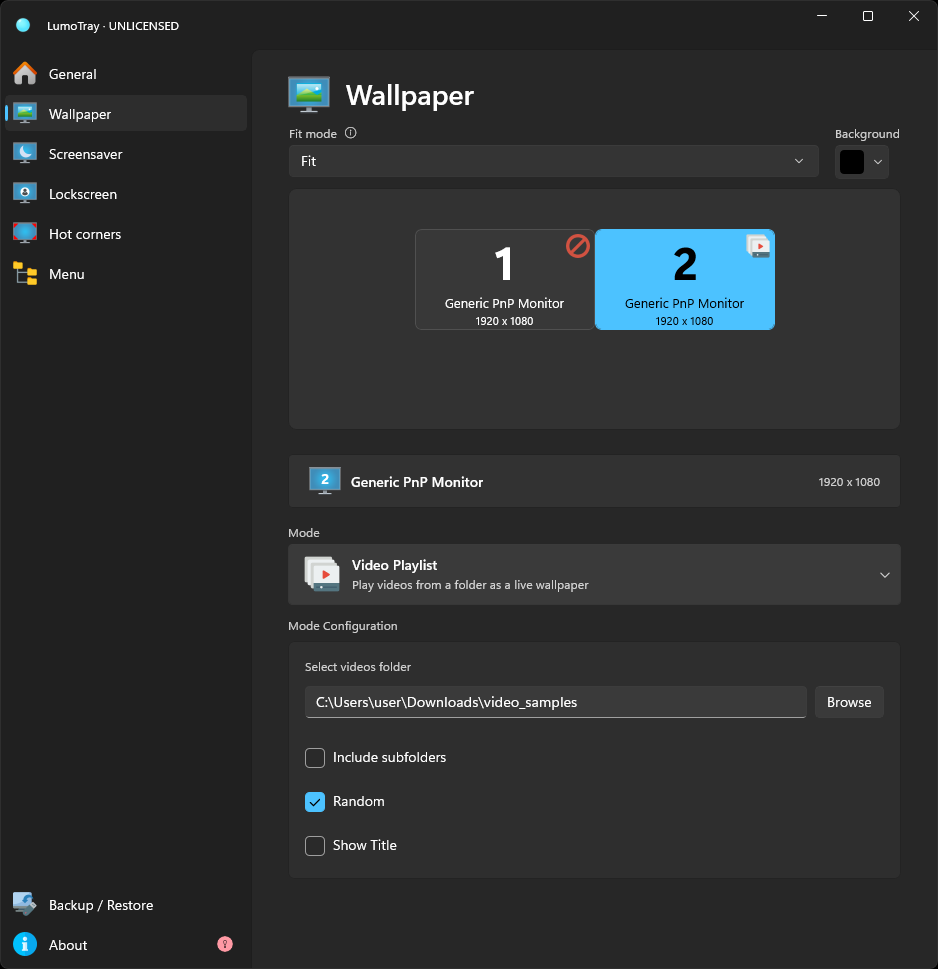
Here is how to set it up:
- Open LumoTray and go to the Wallpaper Manager section.
- Pick the monitor you want to change from the monitor selector at the top.
- Select Local Videos / Playlists from the mode list.
- Click Add Videos and pick one or more video files from your PC.
- If you added multiple files, check the Shuffle box and set how often you want the next video to play.
- Hit Apply -- the video starts playing as your wallpaper immediately.
If you want different videos on different monitors, switch to the next monitor in the selector and repeat the process. Each monitor gets its own video or playlist, with its own fit mode.
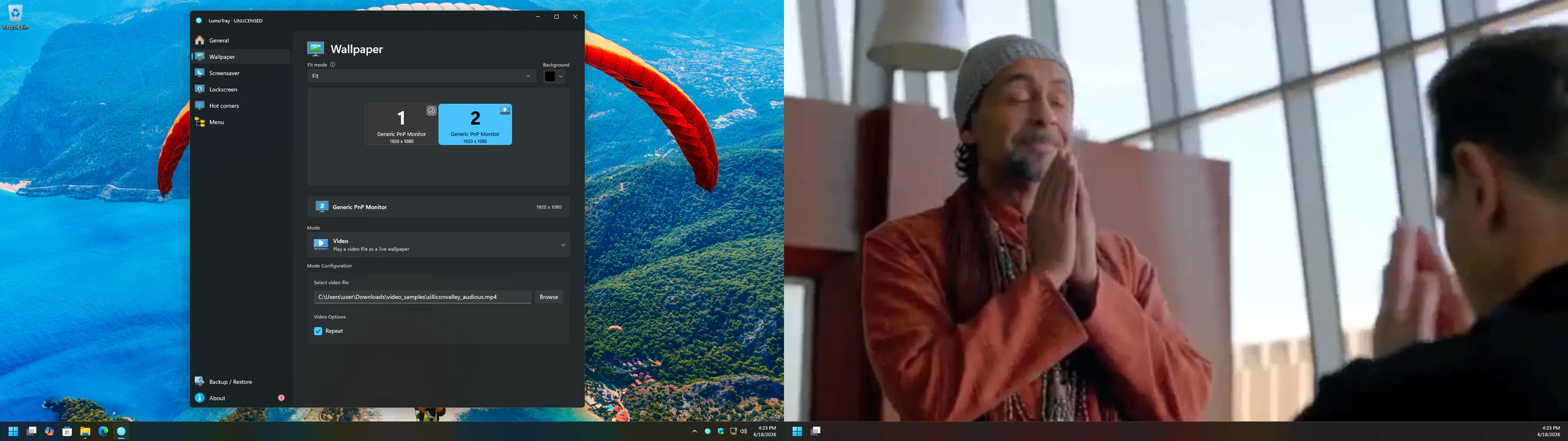
The playlist feature is the part that makes this practical. Instead of watching the same 15-second loop all day, you can queue up a folder of ambient scenes, cinemagraphs, or anything else you enjoy, and let LumoTray rotate through them.
What to expect (and what not to)
Video wallpapers look great, but they are not a free lunch. Here is what you should know:
Performance. A looping video on your desktop will use some GPU and CPU. On a modern machine with a discrete GPU, you probably will not notice it. On a laptop running integrated graphics, you might see a small battery life hit. Windows Media Foundation handles the playback, which means GPU acceleration depends on your hardware codec support, but the exact impact depends on your setup and the video resolution.
Format support. LumoTray plays standard video formats through Windows' Media Foundation framework. If your video plays in the Windows Films & TV app, it will almost certainly work as a wallpaper.
Multiple monitors. Each monitor can have its own video or playlist, with independent shuffle settings. You can also mix and match -- video on one monitor, a static Unsplash feed on another, a Matrix Code animation on a third. LumoTray does not force one mode across all screens.
No interaction. The video wallpaper is just a background. You cannot click on it, pause it directly on the desktop, or interact with it. That is the same limitation Microsoft's own upcoming implementation will have, and it is how most video wallpaper tools work -- they render behind your windows, not as part of them.
When a video wallpaper makes sense
Video wallpapers work best when you want your desktop to feel alive without being distracting. Slow ambient loops -- clouds, gentle water, a city skyline at night -- tend to work better than fast-paced or high-contrast clips that grab attention every time you minimize a window.
If you are on a multi-monitor setup, putting a subtle video on a secondary screen while keeping the primary monitor clean is a nice middle ground. The secondary monitor is often just showing your wallpaper anyway, so making it ambient video instead of a static image adds personality without getting in the way.
And if you ever want to switch back to a daily photo feed or a static image, you can do it from the same app. You are not locked into one wallpaper type.
Ready to set a video as your desktop wallpaper? LumoTray is available from the Microsoft Store.
Download LumoTray from the Microsoft Store
Also read: How to Set Different Wallpapers on Multiple Monitors in Windows 11, Per-Monitor Wallpaper Slideshows, and Bring Back Useful Screensavers on Windows 11.