
Windows Spotlight Alternatives for Daily Wallpapers
Explore alternatives to Windows Spotlight for daily wallpapers, including Bing, NASA, and Unsplash, with a separate source for each monitor in LumoTray.
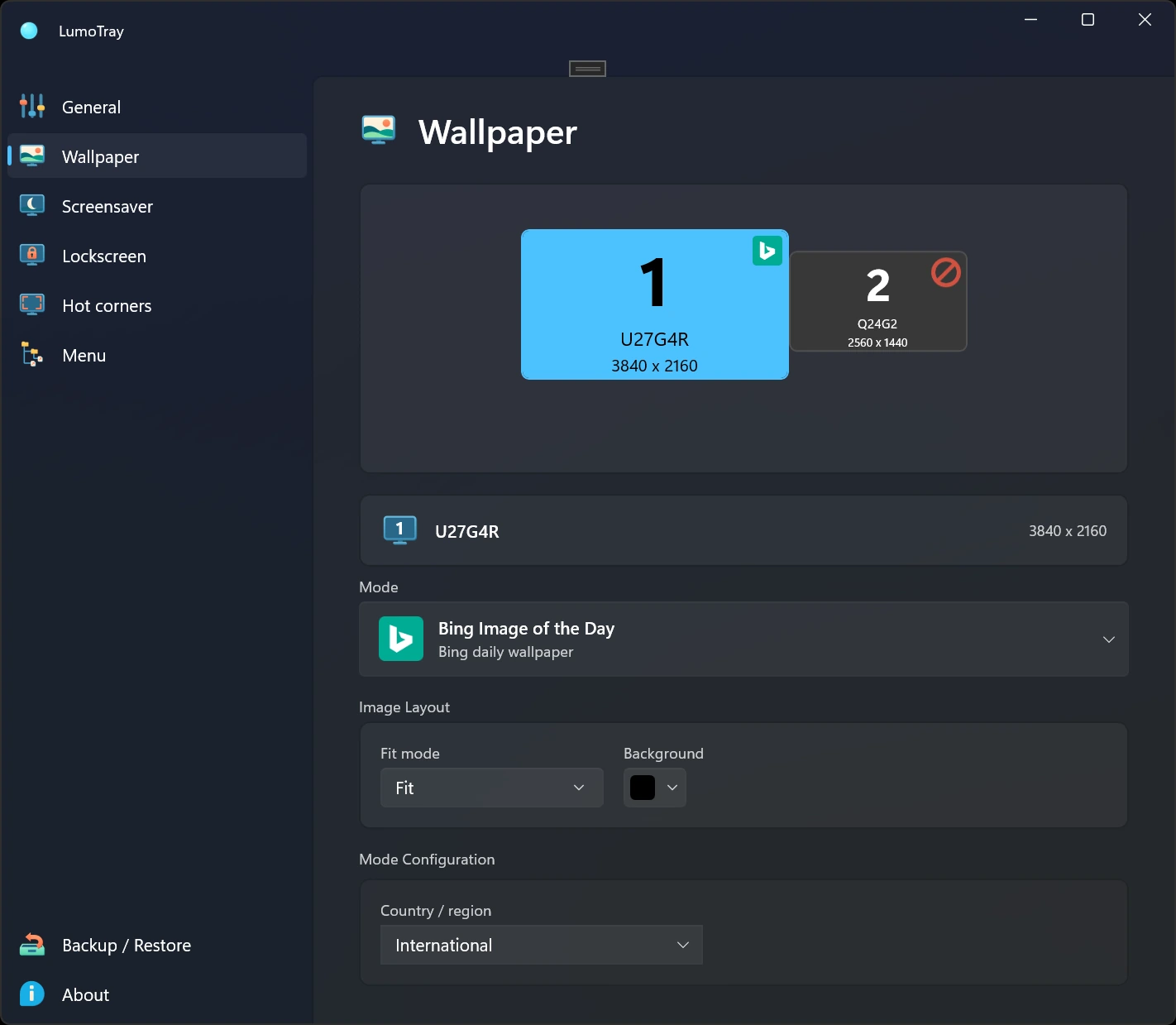
If you want a changing desktop background, first decide whether you want Microsoft's Spotlight images, another online source, or a folder of your own photos. That choice matters more than finding a universal fix for every wallpaper problem.
This guide focuses on alternatives and setup. A wallpaper app does not guarantee that Windows or a remote image provider will never fail.
Common Windows Spotlight problems
An image that stays the same can have several explanations. Note whether the problem affects the desktop, the Lock Screen, or both, and check which source is selected before changing anything else.
Microsoft's background settings guide explains the built-in picture, slideshow, and Spotlight choices. Its instructions also distinguish physical monitors from virtual desktops.
Windows Spotlight troubleshooting options
Confirm the selected background type, try an ordinary local picture, and check the behavior again. If a work or school policy controls the image, ask the administrator before changing management settings.
For an unresolved Windows issue, use the support guidance for your installed build. This article does not prescribe a sequence of registry changes, account conversions, or package resets as a universal repair.
Choose a source for daily wallpapers
For your own photos, a local slideshow avoids depending on a remote image feed. For online photography or artwork, compare the source and refresh controls offered by the app you use.
LumoTray includes Bing, NASA APOD, Unsplash, Wallhaven, Windows Spotlight, and other supported image sources. You select a source as a wallpaper mode for a display; the app does not combine all selected providers into one mixed feed.
Set up daily wallpapers with LumoTray
- Open LumoTray from the Windows tray and go to Wallpaper settings.
- Select the physical monitor you want to configure.
- Choose an image-source mode, such as Bing or NASA APOD, or select Slideshow for a local folder.
- Review that mode's source, timing, and image-fit settings, then apply the configuration.
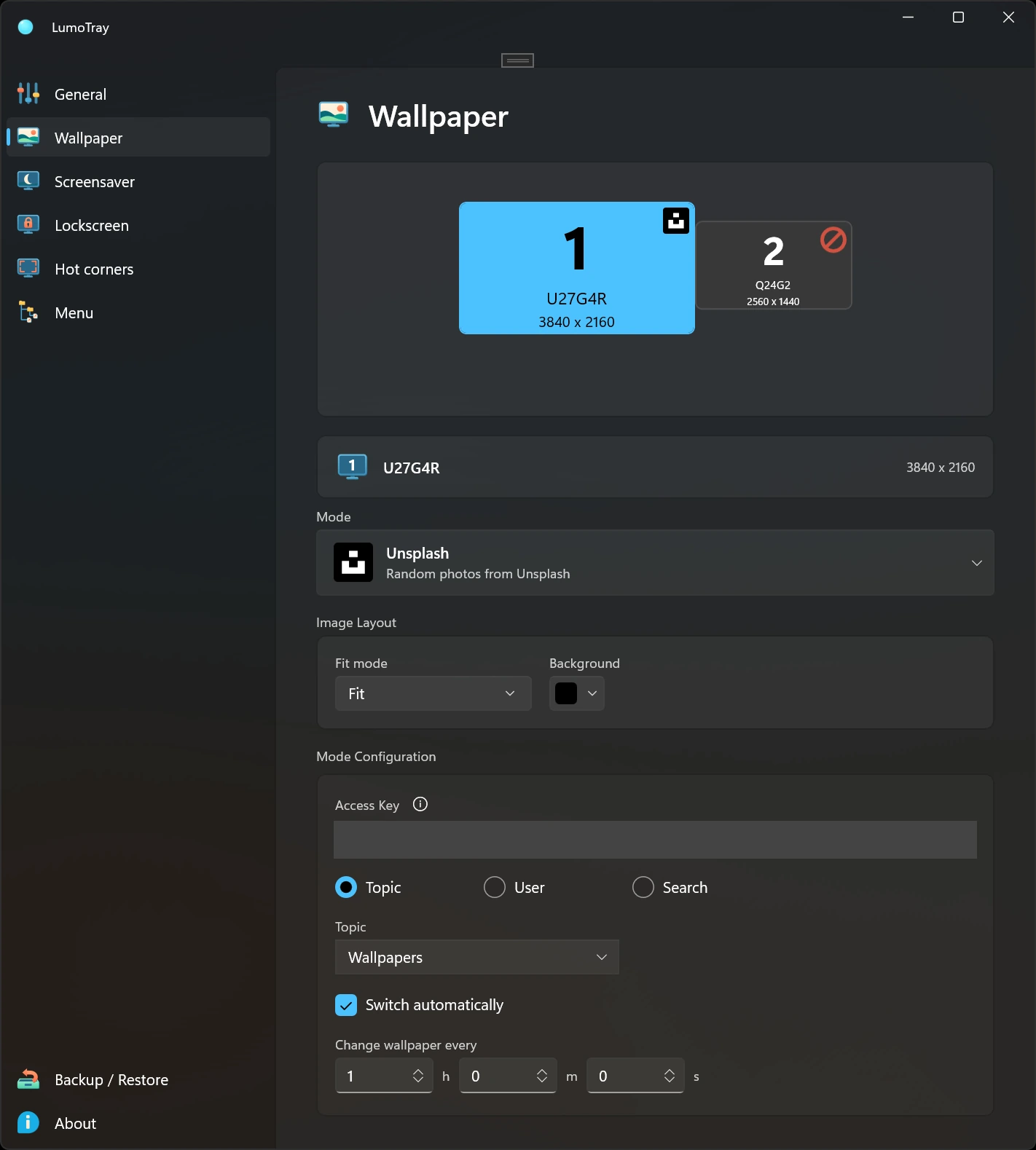
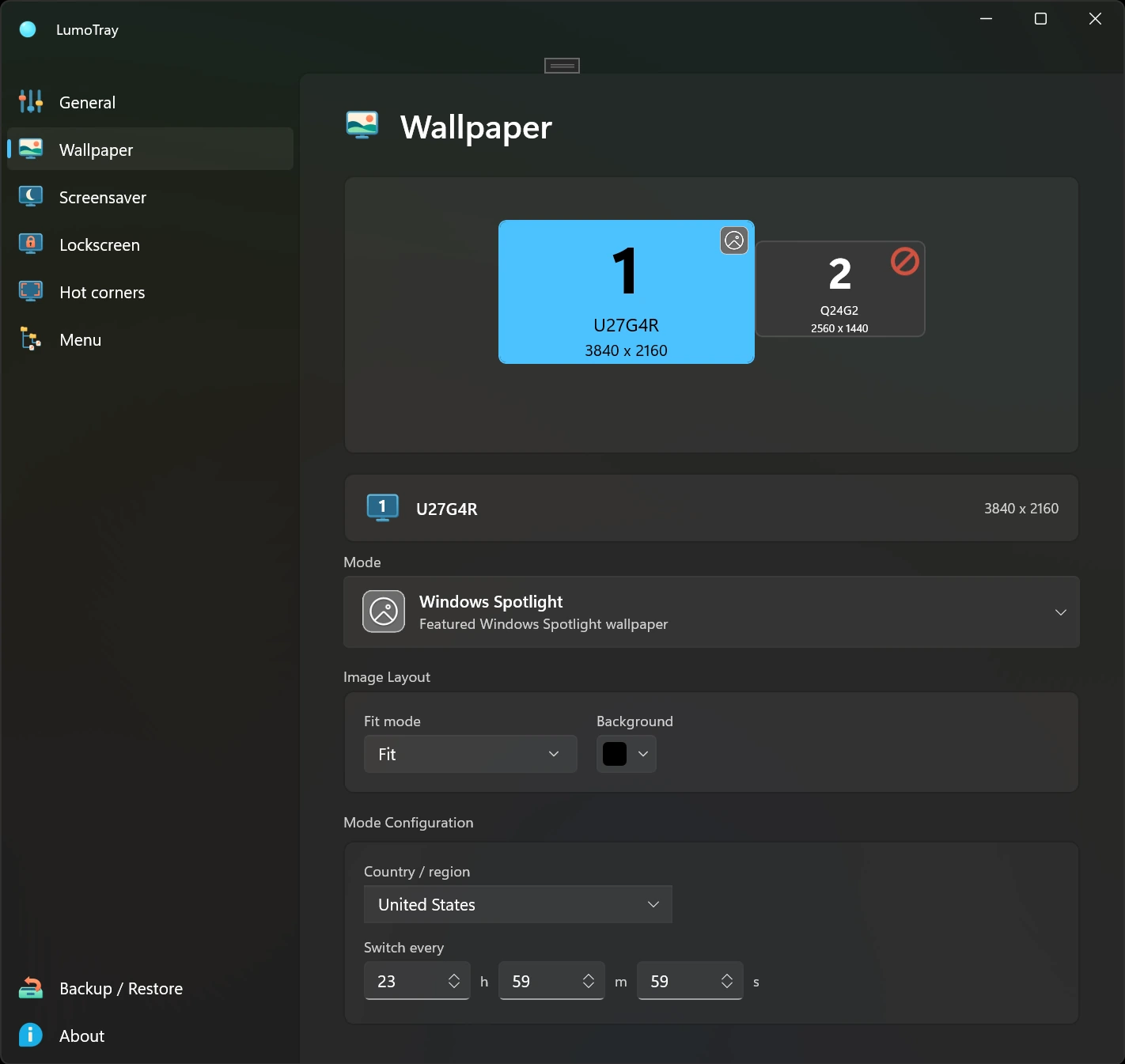
Source settings and available images differ by provider. A source described as daily is not a promise that every refresh returns a different picture. Network access, provider availability, and the selected mode still matter.
Choose a wallpaper source for each monitor
Use a local image on the main display and a rotating source on a side display, or configure separate slideshow folders. Select the other monitor in LumoTray and set its mode independently.
For the folder-based workflow, follow the per-monitor slideshow guide. For a wider overview, explore the LumoTray wallpaper manager.
How to set up daily wallpapers
Start with one display and one source. Check that the image appears on the intended monitor, then adjust timing and fit. Repeat for other screens once the first configuration works as expected.
What to expect from an alternative
Choose an alternative for its controls and sources, rather than a promise of immunity to Windows problems. LumoTray provides per-display settings and supported image modes while still relying on Windows and, for online modes, external providers.