
How to Get Fresh Wallpapers on Windows 11 Every Day Without Sticking to One Source
Compare Windows wallpaper options with LumoTray sources including Unsplash, Wallhaven, Bing, NASA, and Spotlight, assigned separately per monitor.
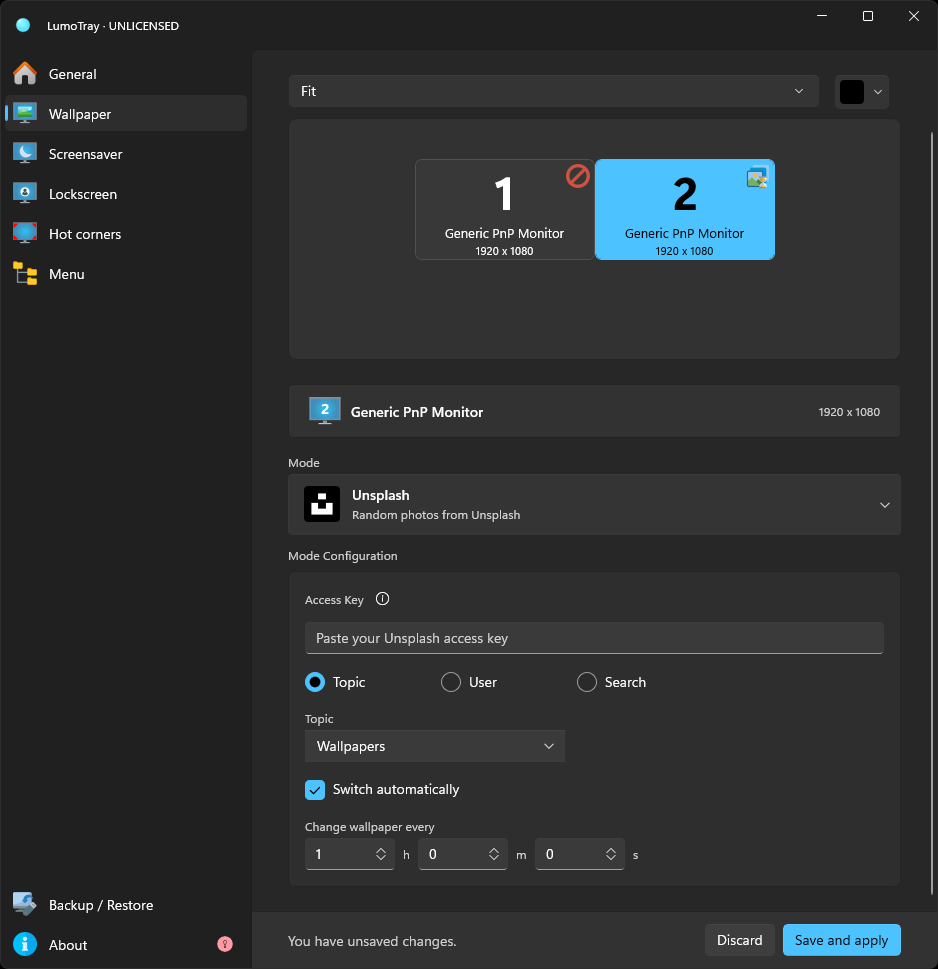
Windows 11 can change your wallpaper automatically. The built-in slideshow feature has been there since the XP days, and Windows Spotlight technically delivers a new image every day.
What Windows cannot do is give you fresh wallpapers from sources you actually pick. The slideshow only pulls from a local folder. Spotlight gives you whatever Microsoft curates. The official Bing Wallpaper app has had a rough year. And if you want different sources on different monitors, Windows 11 has no answer at all.
This post covers what Windows 11 actually offers for automatic wallpapers, where each option falls short, and how to set up multiple dynamic wallpaper sources across your monitors with LumoTray.
What Windows 11 gives you
Windows 11 ships with three ways to get a different wallpaper without manually changing it yourself:
1. The built-in slideshow
You pick one folder. Windows shuffles images from it at a fixed interval -- 1 minute, 10 minutes, 30 minutes, 1 hour, 6 hours, or 1 day. One folder, one timer, every monitor.
There is no way to pull from an online source. No Unsplash. No Wallhaven. No Bing. Just whatever images you have already downloaded into that folder. If you want fresh content, you need to go find it yourself first.
2. Windows Spotlight
Spotlight shows a curated image on your lock screen and, if you enable it, your desktop. You get what Microsoft picks. Some days it is a nice landscape. Some days it is a close-up of a sea slug.
The bigger problem is reliability. Spotlight has a documented history of stopping for no clear reason. Microsoft Q&A threads from 2025 and 2026 show users whose Spotlight image stays frozen for weeks, and the standard fixes -- resetting Spotlight, clearing its cache folder, re-registering it via PowerShell -- do not always stick. We covered this in detail in our Spotlight alternative guide.
3. The Bing Wallpaper app
The official Microsoft Bing Wallpaper app is a separate download. It sets your desktop to the daily Bing image, the same one you see on bing.com.
In December 2025, Windows Latest reported that Microsoft had added a "click anywhere on desktop to open Bing" behavior -- and forgot to expose the toggle to turn it off. Click your desktop to dismiss a window, and Bing opens in your browser instead. The option was eventually restored, but the app still shows up in Active Microsoft Q&A threads with reports of wallpapers not updating, the tray icon disappearing, and the app crashing.
The Bing app also does not give you a choice: one daily image from one source, applied across the monitors.
The standalone-app alternatives
A few free tools have been filling the gap for years:
John's Background Switcher (JBS) is probably the best-known. It supports local folders and online sources including Flickr, Unsplash, SmugMug, and RSS feeds. It is lightweight and stable, but it is a single-purpose wallpaper rotator -- no per-monitor profiles, no screensaver or lock screen integration.
Dynamic Theme is a small Microsoft Store app that rotates wallpapers from Bing and Windows Spotlight. Simple, but source-locked and single-monitor. PCWorld gave it a nod in 2025 as a clean, no-fuss option.
Both tools solve one part of the problem: getting a new wallpaper without manual work. Neither solves the multi-monitor part, or gives you more than a couple of source options. And neither touches your lock screen or screensaver.
If you want Unsplash landscapes on one monitor, Wallhaven abstract art on another, and NASA's Astronomy Picture of the Day on your lock screen, you are either stitching together multiple tools or running a PowerShell script on a scheduled task.
LumoTray's approach: five dynamic sources, one app
LumoTray's Wallpaper Manager includes five online wallpaper sources that update automatically. Each one is a first-class wallpaper mode with its own settings, and each can be assigned per monitor independently.
Here is what each source does and when it is useful:
Unsplash. Pulls high-resolution photography from Unsplash's free library. There is a search function, so you can pull images by topic -- landscapes, architecture, nature, urban shots -- and let them rotate. Good for clean, professional-looking wallpapers.
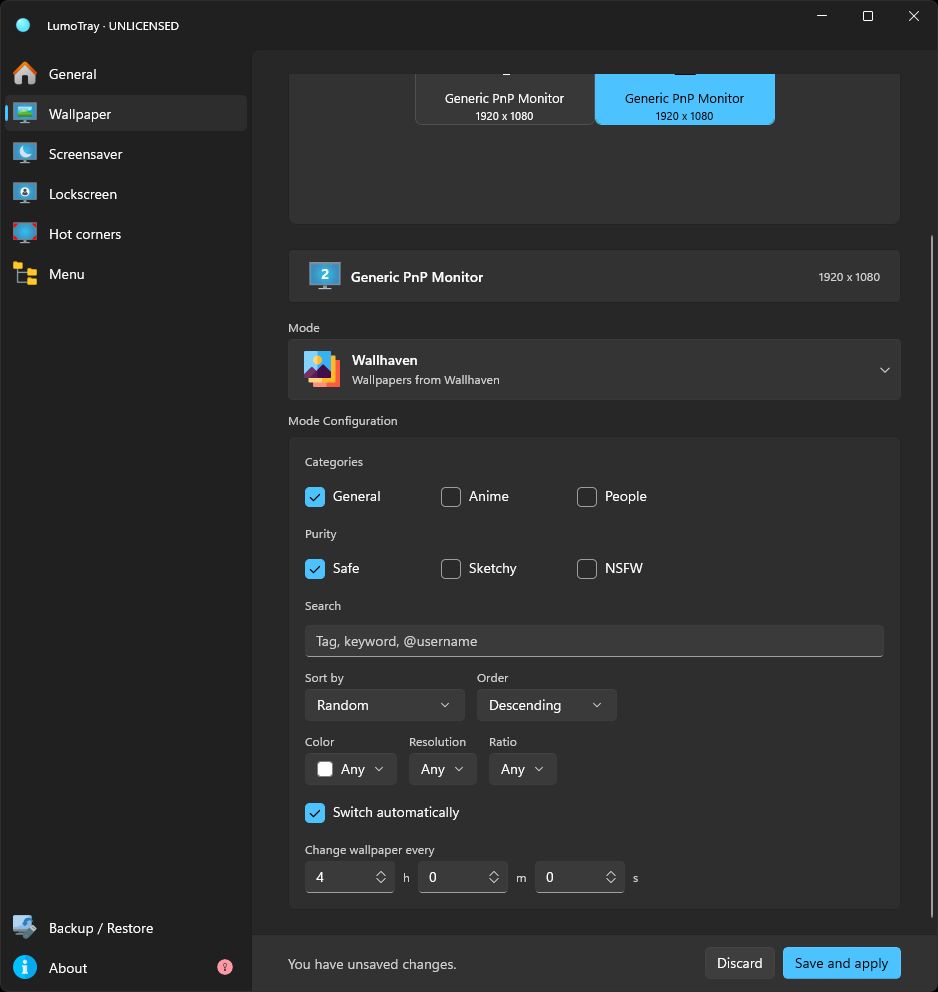
Wallhaven. Connects to wallhaven.cc, a large wallpaper community where images are tagged and sorted by category and resolution. If you have a specific aesthetic preference -- minimalist, pixel art, cyberpunk, nature -- the tags make it easy to narrow things down, and you can match by resolution too.
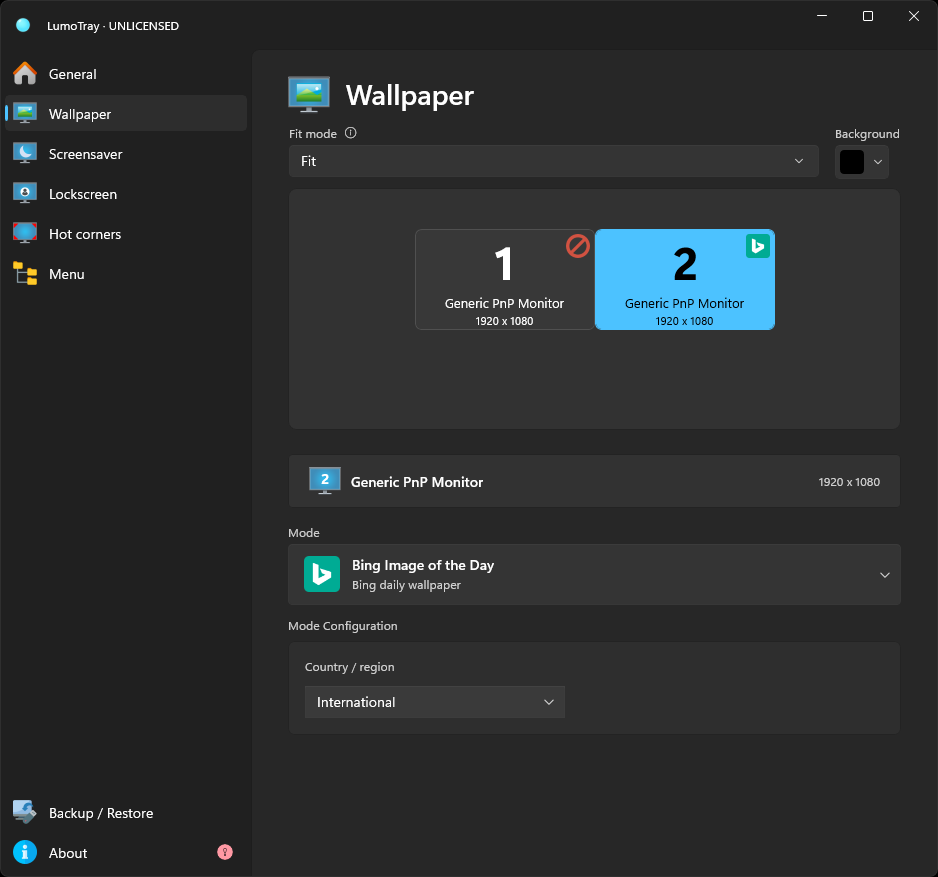
Bing Image of the Day. The same daily image from bing.com, but without the Bing Wallpaper app's baggage. No desktop-click hijacking. No tray-icon problems. It just fetches the image and sets it, every day.
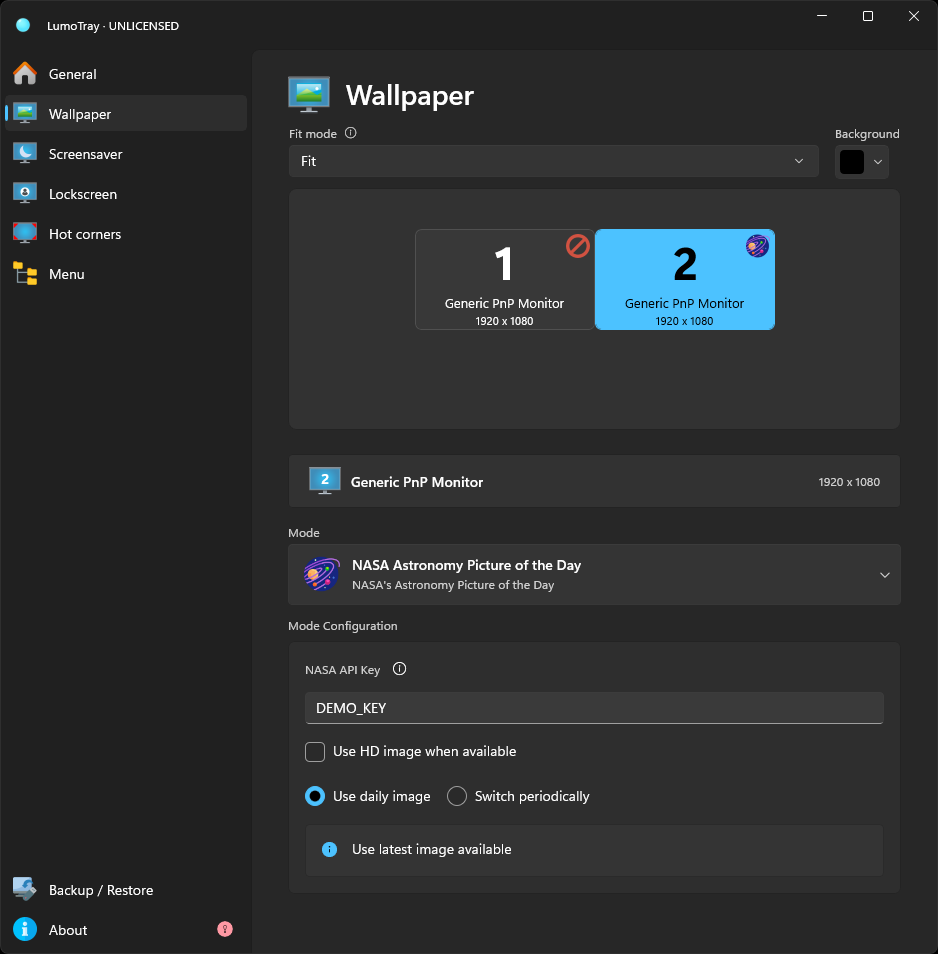
NASA APOD (Astronomy Picture of the Day). Every day NASA publishes one astronomy image with a short explanation. LumoTray sets it as your wallpaper. Great if you want something that changes daily and consistently looks dramatic -- nebulas, galaxies, ISS photography, and the occasional diagram or artist's rendering.
Windows Spotlight Emulation. Fetches the same Spotlight images Microsoft pushes to the lock screen and makes them available as your desktop wallpaper. You still get the curated Spotlight feed, but with more control over when and how it updates.
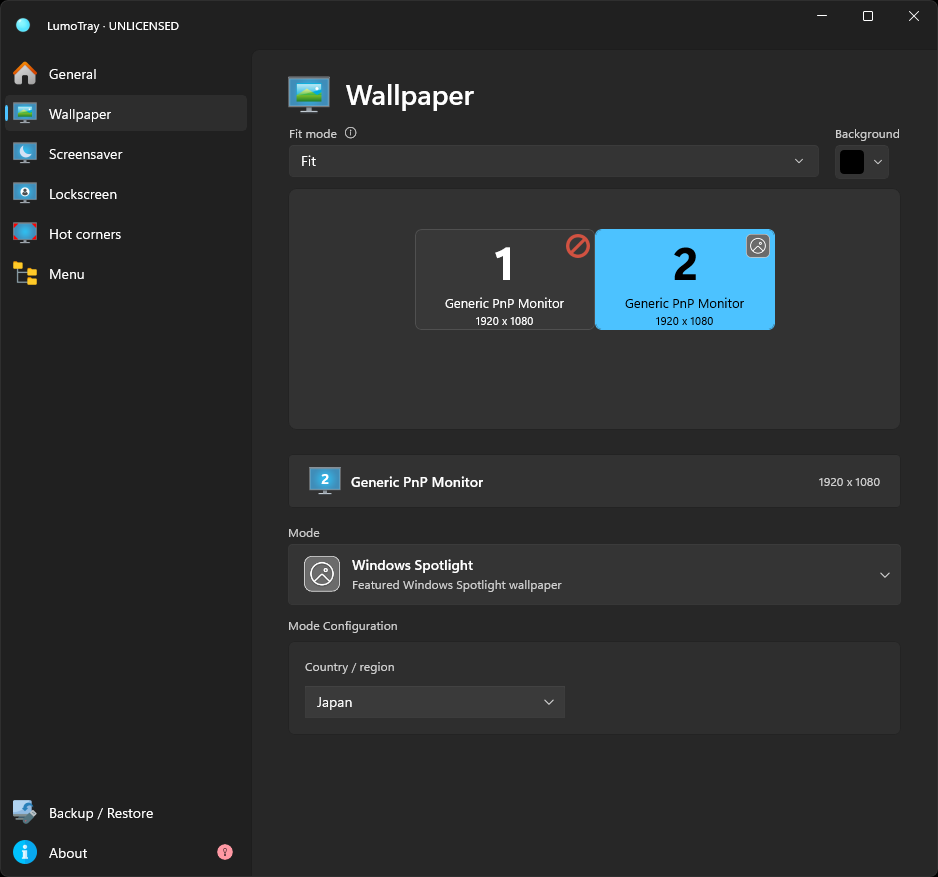
Each of these modes lets you set the update interval independently. You can refresh Unsplash every hour, Bing once a day, and Wallhaven every 30 minutes. The settings are per-source.
The multi-monitor part
This is where a single-purpose wallpaper rotator falls apart. With LumoTray, each monitor gets its own wallpaper mode and its own configuration.
A realistic example: Monitor 1 gets Wallhaven with a "landscape photography" tag filter, refreshing every 30 minutes. Monitor 2 gets Unsplash with an "abstract" keyword, refreshing once a day. Monitor 3 is set to NASA APOD.
All three run independently from the same app. No scheduled tasks. No combining multiple tools and hoping they do not conflict.
You can also set one monitor to a dynamic source and another to a static image, a local slideshow, a live video, a Webpage -- LumoTray's Wallpaper Manager has 14 modes total. We have covered some of these in other posts: the per-monitor slideshow guide, the video wallpaper setup, and the overall multi-monitor wallpaper guide.
Setting it up
In LumoTray, open the Wallpaper Manager tab:
- Pick your monitor from the top dropdown. Each monitor is configured separately.
- Select the wallpaper mode from the list -- Unsplash, Wallhaven, Bing IOTD, NASA APOD, or Windows Spotlight.
- Configure the source settings. For Unsplash, you might set a search query. For Wallhaven, you might restrict by category and set a tag filter.
- Set the change interval. How often the wallpaper refreshes from the source.
- Switch to another monitor in the dropdown and repeat with a different source.
LumoTray then fetches new wallpapers on the schedule you set for each monitor and source.
If you want to use the same sources on your lock screen, LumoTray's Lockscreen Manager supports all the same wallpaper modes. You can set your lock screen to pull from a different source than your desktop, or the same one.
The trade-off
Windows 11 gives you a slideshow from one folder, a Spotlight feed you cannot control, and a Bing app that has had a rough year. Each of those does exactly one thing, and none of them care which monitor you have.
The third-party rotators -- JBS, Dynamic Theme, Desktop Studio -- are solid at what they do, but what they do is narrow: rotate wallpapers from one source on one monitor.
LumoTray bundles these sources into one app and makes them per-monitor. The Bing app remains a good fit when you want its daily image everywhere; choose LumoTray when different screens need different sources.
Download LumoTray from the Microsoft Store